Quickstart
GBTEC Work Orchestrator content structure
Your GBTEC Work Orchestrator application contains processes that have been modeled in your GBTEC Process Design. Cases can be created for each of these processes. Cases are concrete forms of a process flow. They contain executable tasks that represent the process steps of the corresponding process. The tasks can be executed automatically or manually by assigned, responsible users or user groups.
The processes for the productive work with GBTEC Work Orchestrator are available to all users (unless restricted). This is because the processes are based on the published version of the corresponding diagrams. In accordance with the different stages of GBTEC Process Design, GBTEC Work Orchestrator provides authorized users with multiple environments to follow the development of a process.
Which GBTEC Work Orchestrator user roles are available and which permissions do they have?
There are five different user roles for GBTEC Work Orchestrator. These are assigned in the user management of GBTEC Process Design. Multiple roles can be assigned at the same time.
ProcessApp Administrator: As a ProcessApp Administrator, you have access to the administration area and can manage all available options.
ProcessApp Analyst: As a ProcessApp Analyst, you have access to the monitoring dashboard and can monitor all processes.
ProcessApp Creator: As a ProcessApp Creator, you can model executable processes in GBTEC Process Design. If you want to further edit a diagram and you have this role, you have the possibility to open the editor in the context menu of an activity. Alternatively, you can also open the editor by selecting the activity and choosing the Editor section from the Details menu. There, you will find a button that allows you to open the editor. Only users with the ProcessApp Creator role have the option to use the Test ProcessApp button in the preview stage or in the public workspace within the diagram view in GBTEC Process Design and work on tasks.
ProcessApp User: As a ProcessApp User, you can initiate cases and see how far along they are. You can use the Create Case button in the diagram view of GBTEC Process Design at any stage and work on tasks if you have the ProcessApp User role.
ProcessApp Participant: As a ProcessApp Participant, you can have active tasks and work on them, but you cannot initiate tasks.
Warning
Please note that both the ProcessApp User role and the ProcessApp Participant role are needed to edit and manage tasks.
Hint
These roles are not hierarchical. That means having the ProcessApp Administrator role does not automatically give you the rights of the other roles. To get additional rights, you must select multiple checkboxes of your roles in the user management.
The GBTEC Process Design user roles (Reader, Reviewer, Author, Editor, Administrator) are described in the Administration chapter of GBTEC Process Design.
First steps
How do I log in?
To be able to use GBTEC Work Orchestrator, you must be a registered user of GBTEC Process Design. Once this requirement is met, you can log in to GBTEC Work Orchestrator at any time.
Logging in to GBTEC Work Orchestrator is the same as logging in to GBTEC Process Design. After launching GBTEC Work Orchestrator and completing the login, you will be automatically directed to your tasks.
If you do not have any active tasks, you will be redirected to the process overview.
Tip
To make the simultaneous use of GBTEC Process Design and GBTEC Work Orchestrator as convenient as possible, single sign-on is used. This means that a single login to one of the two applications is sufficient to be automatically logged in to the other application. This means that you do not have to log in again when you start the other application.
Warning
Please note that you will receive a notification if you attempt to access the application with an unsupported browser. The message will inform you that your browser is not compatible. It is important to note that only Internet Explorer is currently not supported.
How do I log out?
You can find the Logout function in the menu.
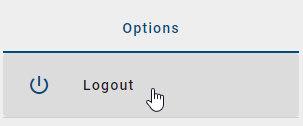
After using this function, you will be logged out of the GBTEC Work Orchestrator application.
Hint
The single sign-on function automatically logs you out of GBTEC Process Design after you sign out of GBTEC Work Orchestrator.
How is the interface of GBTEC Work Orchestrator structured?
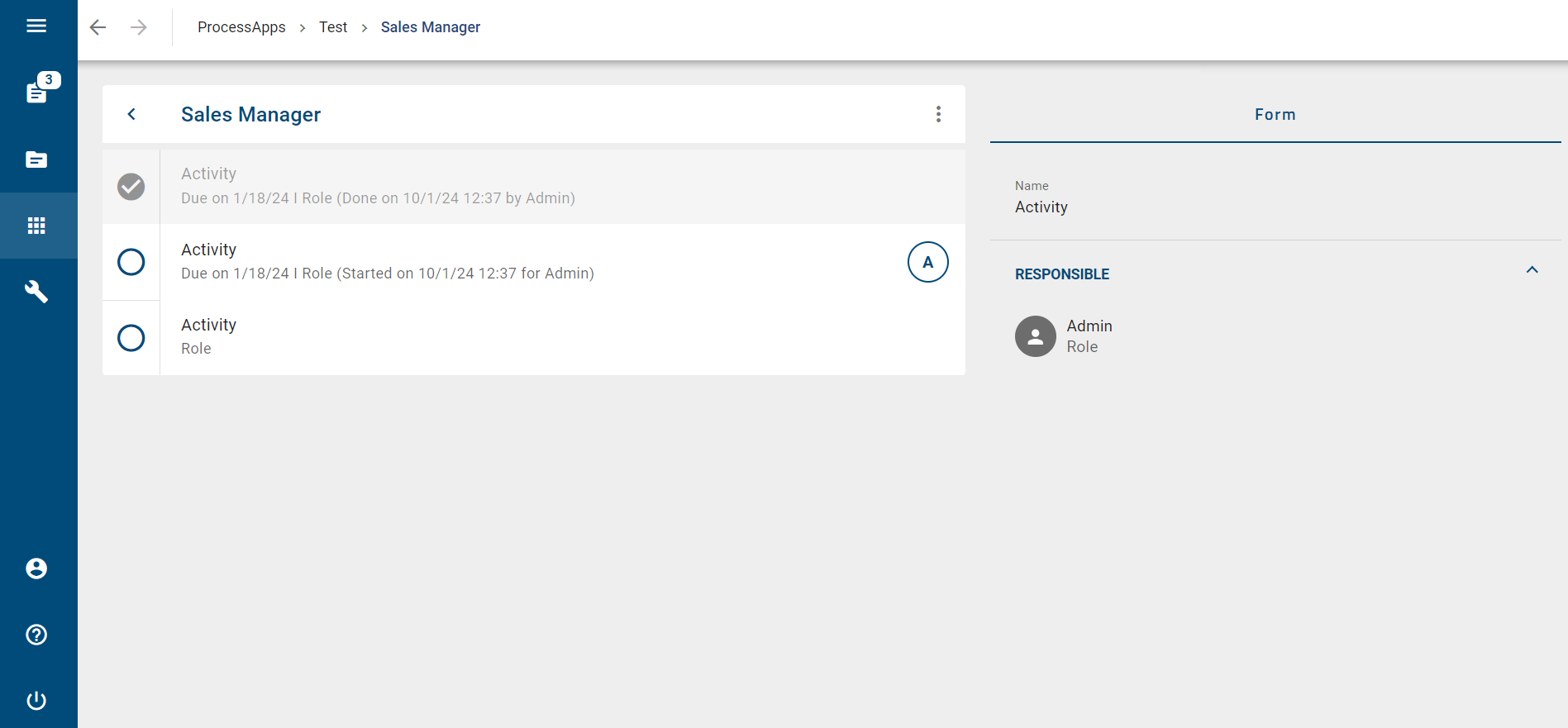
The GBTEC Work Orchestrator interface can be divided into three parts:
Header: The header shows the area that is currently displayed. In addition, you will find some basic functionality such as the burger menu icon, which is used to show or hide the menu sidebar. In the mobile view you will also find, for example, the back arrow, which is used to navigate back through the different layers.
Main area: This is the central area where you can, for example, work on tasks, view processes or check the progress of the cases.
Sidebars: Navigation elements and functions, such as the menu, are provided through the sidebars of your screen. By default, the sidebar is shown or hidden depending on your current screen size, your zoom setting and the level you are currently at. You can expand or collapse the menu as needed by clicking the menu icon in the top left corner.
How can I navigate through GBTEC Work Orchestrator?
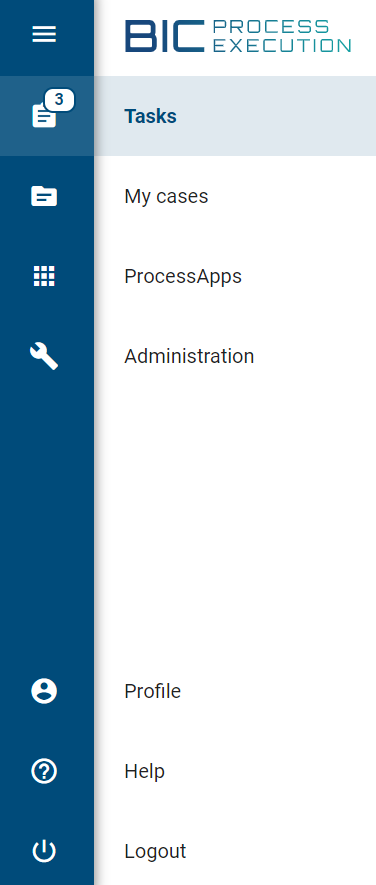
The fundamental navigation structure in GBTEC Work Orchestrator is the menu. It is located on the left side of your screen in the form of a sidebar. The menu entries navigate you to the main areas of GBTEC Work Orchestrator. For example, the menu contains the following main areas:
Tasks: Here you will find a list of all tasks from all cases that are currently outstanding for you as the person responsible or member of the responsible user group. This allows you to access your tasks collectively and clearly arranged.
My cases: This area displays all cases that you have created and of which you are therefore the creator. This gives you a quick overview of the progress of the cases that are most relevant to you.
ProcessApps: This area contains all the processes you can use in your GBTEC Work Orchestrator application. For more information on what processes are available in GBTEC Work Orchestrator, click here.
(Administration: As a ProcessApp Administrator, you will also find the Administration in the menu. In this section, you can manage your API keys, configure ProcessApps, and define variables. This allows you to better manage GBTEC Work Orchestrator.)
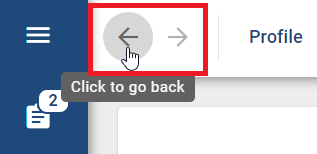
Use the arrows to move back and forth through your history.
Note
To disable the arrows when moving outside of GBTEC Work Orchestrator, we recommend using the Chrome, Opera, Edge and Samsung browsers. The navigation arrows only work when moving within GBTEC Work Orchestrator.
The header contains the breadcrumb navigation. Selecting the desired name will take you from a case or case list to the higher level.

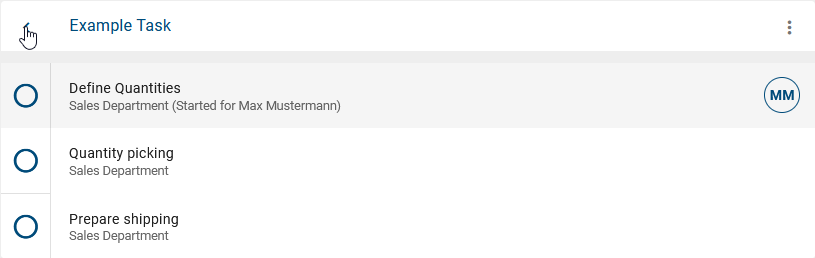
You can also use the Back button in the process flow of a case to navigate to the case list of the respective ProcessApp. Using the Back button in this list, you can go to the ProcessApps (Collections).
Tip
The menu can be hidden or shown by using the burger menu in the upper left corner of your screen. If your screen does not have enough space to display the main area and the menu (for example, in the mobile view), the menu will be hidden by default.
Additionally, you can use the focus in the header to switch between GBTEC Work Orchestrator and GBTEC Process Design (including GBTEC Enterprise Architecture). Select the Process Design focus to open GBTEC Process Design. Select the Work Orchestrator focus to open GBTEC Work Orchestrator. If GBTEC Enterprise Architecture is enabled, you can also select the Enterprise Architecture focus. For more information, see here.
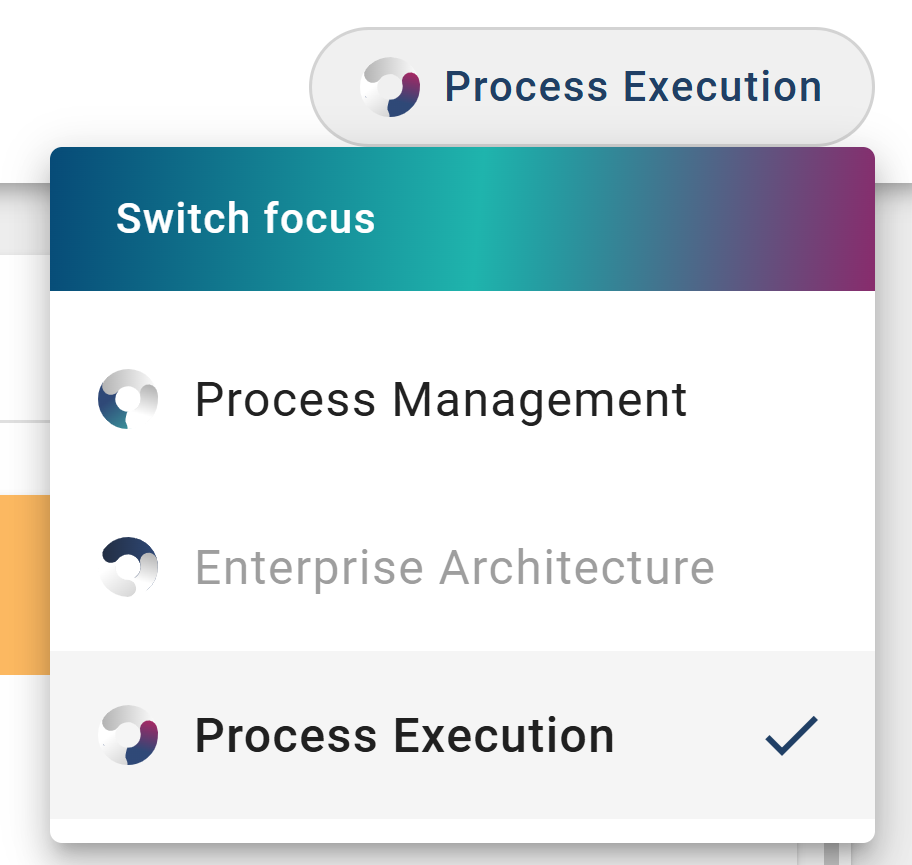
When you select a focus Process Design, Work Orchestrator or Enterprise Architecture, the display is switched to the chosen focus and your user preferences are updated accordingly. The start page for the selected focus is then automatically loaded. Favorites that have been marked in a specific focus are displayed only in that focus. This allows you to view individually saved favorites and content in each focus area without affecting other focuses.
Warning
Please note that clicking the focus dropdown menu shows all focuses available in GBTEC Platform. Only the focus areas your company has purchased can be selected, while all other focuses are greyed out and unavailable.
Warning
If a focus is saved that can no longer be used (for example, because the associated product is no longer purchased), it will be automatically replaced at login. In this case the default is set to Process Design to ensure that every user has a valid and usable focus after logging in.
How can I install GBTEC Work Orchestrator as PWA on my device?
You can install GBTEC Work Orchestrator as a Progressive Web App on your mobile device or desktop computer. This gives you faster access to the application and allows you to receive push notifications on your mobile device even when the application is closed. The PWA installation process may vary depending on the operating system and browser on your device. For detailed instructions on how to install a PWA on your device, please refer to the corresponding help. For example, instructions for an Android device using the Google Chrome browser can be found here.
Where can I find the help?
In the menu, click on the question mark to open the help. Here you can view the user documentation.