Diagrams
Diagrams for GBTEC Enterprise Architecture are created and managed through the same Diagrams menu item as diagrams in GBTEC Process Design. General functions such as creating, searching, filtering, and exporting diagrams are therefore described in the chapter Diagrams of GBTEC Process Design.
This chapter covers creating a diagram for GBTEC Enterprise Architecture, the AI-supported generation of Business Capability Maps, their Map view, and how context diagrams are displayed in the occurrences of an object.
How can I create a diagram for GBTEC Enterprise Architecture?
As a user with the Administrator, Editor, or Author user role, you can create a new diagram for GBTEC Enterprise Architecture. Open the Diagrams menu item in the left menu bar and click the Create diagram button in the bottom right of the diagram list.

A list of all supported diagram types opens. This list contains both the diagram types of GBTEC Process Design and the diagram types that are relevant in the context of GBTEC Enterprise Architecture. The following diagram types are relevant for GBTEC Enterprise Architecture:
Business Capability Map
Business Capability Context Diagram
Application Context Diagram
IT Component Diagram
Data Object Diagram
IT Architecture Diagram
To cancel the process early, click the X button.

After selecting the desired diagram type, a dialog opens. Enter a name for the diagram there. The Enter me as Author toggle switch is enabled by default and automatically enters you in the Author governance attribute of the diagram. Then click the Create button to display your new diagram.

Note
A detailed description of the individual diagram and object types for GBTEC Enterprise Architecture can be found in the chapter Enterprise Architecture Management.
How can I create an AI-generated Business Capability Map?
As a user with the Administrator, Editor, or Author user role, you can generate a diagram of the type Business Capability Map using AI.
Open the Diagrams menu item in the left menu bar and click the Create diagram button in the bottom right of the diagram list. Select the diagram type Business Capability Map. A dialog opens in which you must first enter a name for the diagram. To create an AI-generated Business Capability Map, additionally activate the option Generate overview with AI, which is disabled by default.
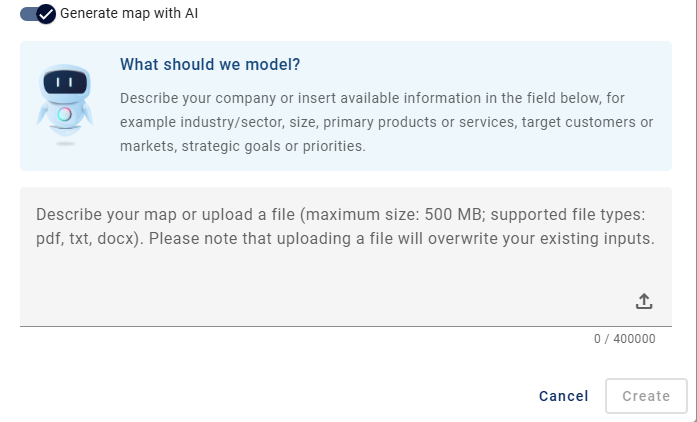
By activating this option, you can describe the overview so that Arty can create a matching diagram based on your input. You can enter your description directly into the text field or drag and drop a text document into it.
Below, in the Generation options area, you will also find the Generate catalog suggestions toggle, which is disabled by default. If this option is disabled, the Business Capabilities created by Arty are added exclusively as objects in the diagram and are not additionally stored as suggestions in the catalog. This keeps the catalog clear even after extensive or repeated generations. Activate the toggle so that the created Business Capabilities are stored directly as catalog suggestions and are therefore immediately available for further processing.
Note
Regardless of this setting, you can still manually suggest individual Business Capabilities as catalog items afterwards from the column view. For more information, see the chapter How do I navigate from the Map view of a Business Capability Map to the catalog?.
Then click the Create button to generate the diagram in your current content language. While the diagram is being created, an image from Arty will be shown. This process may take several minutes. Afterward, you will either be automatically redirected to the Business Capability Map or receive an error message. To cancel the creation, click the Cancel button.
Note
Please note that when you drag and drop a text document into the text field, only the text it contains will be imported. Structural elements such as headings or images are not considered.
Hint
This feature is provided by Arty, our AI modeler. A separate license is required. Please also refer to the Notes on using AI features.
Hint
Please note that GBTEC Enterprise Architecture is not included in the standard license. Contact your contact person for further information.
How can I edit the diagram attributes of an AI-generated Business Capability Map?
As a user with the Administrator, Editor, or Author user role, you can edit the attributes of an AI-generated Business Capability Map. The diagram must be checked out before you can edit its attributes.
Open the Diagrams menu item in the left menu bar and select the required AI-generated Business Capability Map. If the diagram is not checked out, a pencil icon is displayed in the upper right corner. Click the pencil icon to check out the diagram.

Note
If the diagram is already checked out by another user, a lock icon is displayed instead. Click the lock icon to notify the user via email who has checked out the diagram or, as an Administrator, override the check-out.
After you check out the diagram, the Save and Check in buttons are displayed in the upper right corner. In the right sidebar, you can edit the diagram attributes, for example the Governance attributes required to publish the diagram.
After you have checked out a Business Capability Map generated by Arty, you will find additional editing options on the Options panel in the right sidebar. There, you can, for example, manage Attachments, Discard local changes, or open the Settings. Under the Settings option, you can customize the Label of the Business Capability.

Click the Save button to save your changes. Then click the Check in button to check in the diagram.

Even in the checked-in state, the usual options are also available. To access them, click the Options panel in the right sidebar. There you find the options Publish, Versions, Attachments, Delete, as well as Share by e-mail. These options behave the same way as for a regular diagram. You also find the Settings option there. Use the Label entry to adjust the label of the Business Capability.

Tip
Checked-out Business Capability Maps are displayed in the Checked out by you tile on the MyGBTEC page. Click the entry to open the editing view of the checked-out Business Capability Map directly.
Hint
This feature is provided by Arty, our AI modeler. A separate license is required. Please also refer to the Notes on using AI features.
Hint
Please note that GBTEC Enterprise Architecture is not included in the standard license. Contact your contact person for further information.
How do I display a Business Capability Map in the Map view?
Every user can display a Business Capability Map in the Map view. For a manually created Business Capability Map, the Map view is available in addition to the traditional Diagram view. For an AI-generated Business Capability Map, only the Map view is available.
Open the Diagrams menu item in the left menu bar and select an existing diagram of the type Business Capability Map that contains at least one modeled Business Capability. For a manually created Business Capability Map, switch to the Map view tab. For an AI-generated Business Capability Map, the Map view is displayed automatically.

In the Map view, the modeled business capability hierarchy is presented in a column-based layout. Each column shows the number of subcategories it contains and lists them below. You can expand or collapse business capabilities by clicking the Collapse button. If a name is cut off within a column due to limited space, you can hover over it with your mouse to display the full name.
Above the Business Capability Map, a legend is displayed in the Map view. The legend shows the colors used and their meaning. Which attribute is displayed in the legend depends on your selection in the Options tab in the right sidebar. You can change which attribute is displayed there at any time. The legend remains visible when zooming and moving the map. If you select an entry in the legend, the corresponding entries in the map are highlighted. All other entries are grayed out. If you select the entry in the legend again, the full view is displayed again.
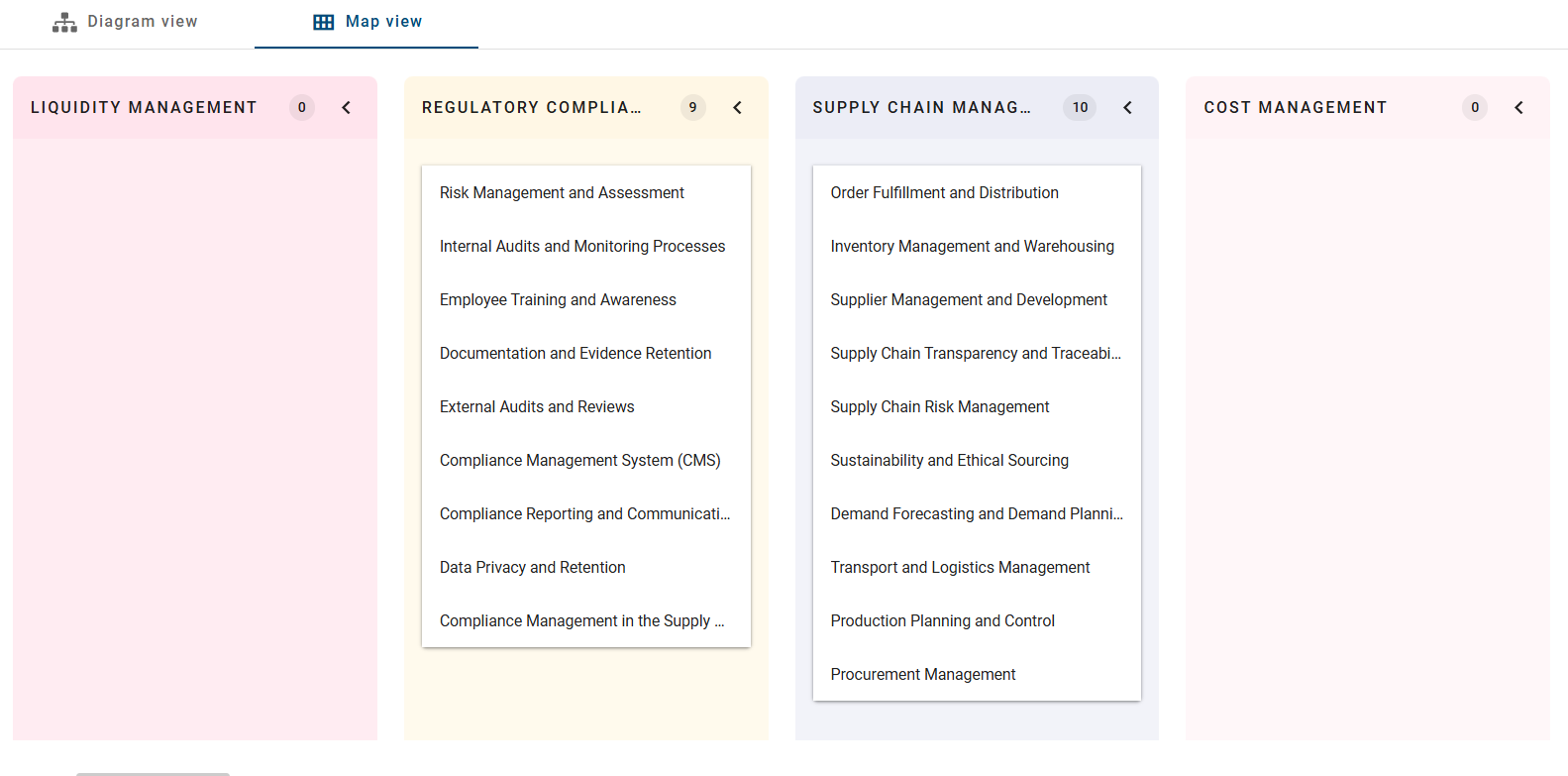
In the Map view, you can open the attributes of a Business Capability directly in the view. Click with the left mouse button on the desired Business Capability so that its attributes are displayed. You can also right-click on the Business Capability and select the Show attributes button in the context menu. In both cases, the selected entry is highlighted in gray so that you can clearly see which Business Capability is currently selected.
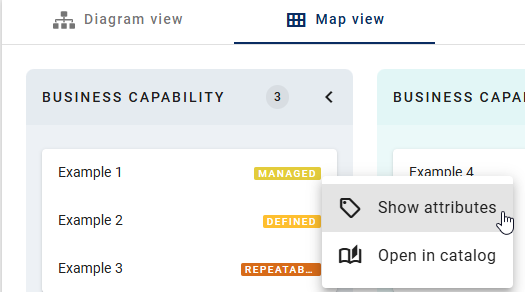
If you select this option, the attributes of the selected item are displayed in the right sidebar in the Details panel.
You also have the option to zoom conveniently within a Business Capability Map. When the view is opened, a zoom bar appears at the bottom center, providing the familiar zoom functions known from diagrams. The view can be adjusted using the zoom buttons, the mouse wheel in combination with the CTRL key, or by dragging with the left mouse button pressed. Scroll bars are automatically displayed as soon as content lies outside the visible area due to the selected zoom level or the size of the map.
How can I manually add or remove Business Capabilities in the Map view?
As a user with the Administrator, Editor, or Author user role, you can manually add or remove Business Capabilities in the Map view of a Business Capability Map generated by Arty. Users with the Author role must also be listed in the “Author” governance attribute of the diagram. To do so, the diagram must be checked out.
To do this, open the Diagrams menu item in the left menu bar and select the desired Arty-generated Business Capability Map. This opens directly in the Map view. Check out the diagram using the pencil icon in the top right corner.
Once checked out, the Map view switches to edit mode. Hover over a Business Capability to display a trash icon for removing it on every level. In addition, placeholders are displayed that let you add both new columns and new entries within existing columns.

To add a new Business Capability, click the desired placeholder. An input field with a suggestion list opens, in which you can search for an existing catalog item or catalog suggestion. Enter the desired name and select the appropriate Business Capability from the list.

The selected Business Capability is then displayed in the corresponding place in the Map view. If you add a new Business Capability on the first level, it is automatically assigned a color.
To remove a Business Capability, hover over the desired entry and click the trash icon that appears.

A confirmation dialog opens. If the Business Capability contains child Business Capabilities, they are displayed in a hierarchical list in the dialog. They are removed together with the selected Business Capability. Click the Delete button to permanently remove the Business Capability along with all of its child Business Capabilities. Click the Cancel button to close the dialog without making any changes.

If you remove all Business Capabilities of a map this way, a start screen is displayed afterwards. It allows you to add a new Business Capability on the first level.
How do I navigate from the Map view of a Business Capability Map to the catalog?
Every user can open business capabilities directly from the Map view in the catalog. Open the Diagrams menu item in the left menu bar and select an existing diagram of the type Business Capability Map. For a manually created Business Capability Map, switch to the Map view tab. For an AI-generated Business Capability Map, the Map view is displayed automatically.
Right-click on a business capability to open the context menu and select the Open in catalog option.
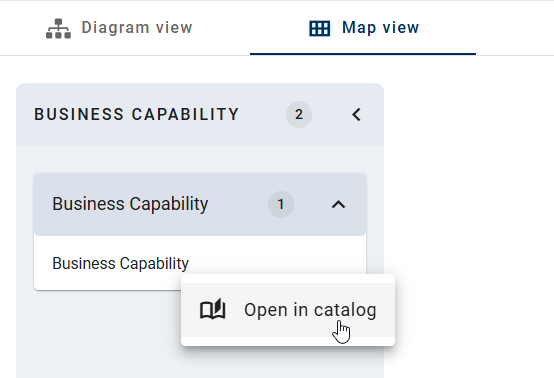
After selecting this option, you will be redirected to the corresponding object in the Catalog. There you can edit the corresponding catalog suggestion of the business capability, view further details, or make additional adjustments, depending on your permissions.
If a business capability was previously rejected as a catalog suggestion or only exists in the Business Capability Map and no active or approved catalog item exists anymore, you can add it again as a catalog suggestion in the Map view. To do this, right-click the corresponding business capability. Select the Suggest to catalog option in the context menu.

What options do I have in the Map view of a Business Capability Map?
Every user can use the Options panel in the Map view of a Business Capability Map to customize the displayed labels. Open the Diagrams menu item in the left menu bar and select an existing diagram of the type Business Capability Map. For a manually created Business Capability Map, switch to the Map view tab. For an AI-generated Business Capability Map, the Map view is displayed automatically.
Open the Options panel in the right sidebar. There, under the Label option, you can view a drop-down menu with various attributes.
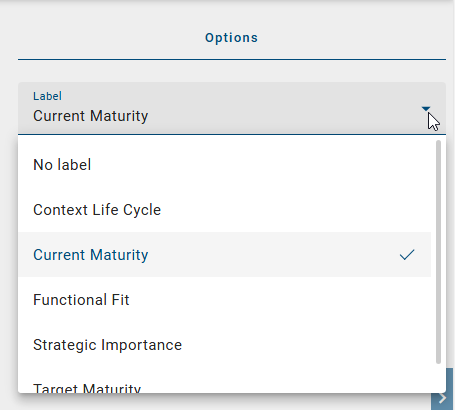
The option Label contains all business capability attributes used in the diagram for selection. You can choose between the attributes Current Maturity Level, Functional Fit, Context Life Cycle, Strategic Importance, and Target Maturity. By default, the Current Maturity Level attribute is preselected. If you do not want to display a specific attribute, select No label. For all business capabilities, the corresponding attribute value is displayed as a label next to the subcategory. If no value is stored for a subcategory, no label is displayed.

You can change the label at any time by selecting a different attribute in the Label option. As soon as you make a selection, all labels within the map view are updated.
How are context diagrams shown in the occurrences of an object?
Every user can view context diagrams in an object’s occurrences. To do so, open the Diagrams menu item in the left menu bar and select an existing diagram. Within the diagram, click the desired object in the main area. Switch to the Options panel in the right sidebar and open the Occurrences option.
Context diagrams appear in this list just like any other occurrence. How to view occurrences in general is described in the chapter How can I view the occurrences of symbols in checked in diagrams? of GBTEC Process Design.

Clicking a list entry for a context diagram takes you to the matching catalog or diagram view, depending on whether the context diagram was created in the catalog or modeled.