Profile
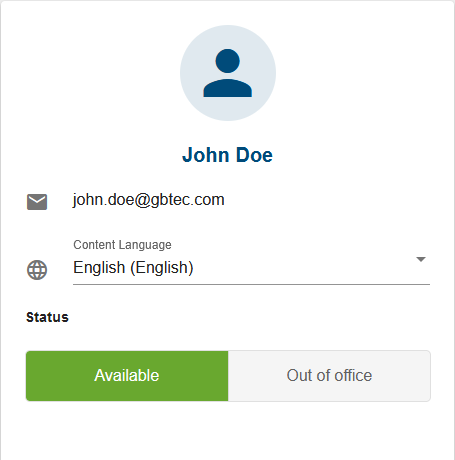
The Profile area allows you to make adjustments to your GBTEC Work Orchestrator interface. For example, you can change your content language or settings regarding your deputy.
Deputy
If you are going to be unavailable for an extended period of time, you can change your availability status. You can set a general deputy, who will be responsible for your tasks while you are Out of office. This ensures that important tasks are not forgotten and the normal workflow continues as usual.
If you set your availability status to Out of office and have a deputy set, your new tasks will automatically be assigned to your deputy.
Note
If your deputy has also appointed a deputy and is also Out of office, your tasks are not assigned to that deputy. This ensures that your tasks are assigned only to people you have personally selected.
Note
You will not receive any email notifications or push notifications if your task is automatically delegated to your deputy. If you are automatically assigned to a task, you will receive all notifications related to that task.
How can I change my availability status?
Your availability status indicates whether you are currently available to work on your tasks or whether you are unavailable (for example, vacation or illness). If you want to change your availability status, you must first navigate to your profile. Here you can see your current status. Your selected option is highlighted.
You have the possibility to switch between Available and Out of office.
Note
Your availability status does not reset, so it will remain as you set it until you change it again.
How can I set my general deputy?
If you want to set your general deputy, you must first open your profile. On the right side you can see the Deputy overview. Here you can set up a general deputy. To do this, select the Define General Deputy option.
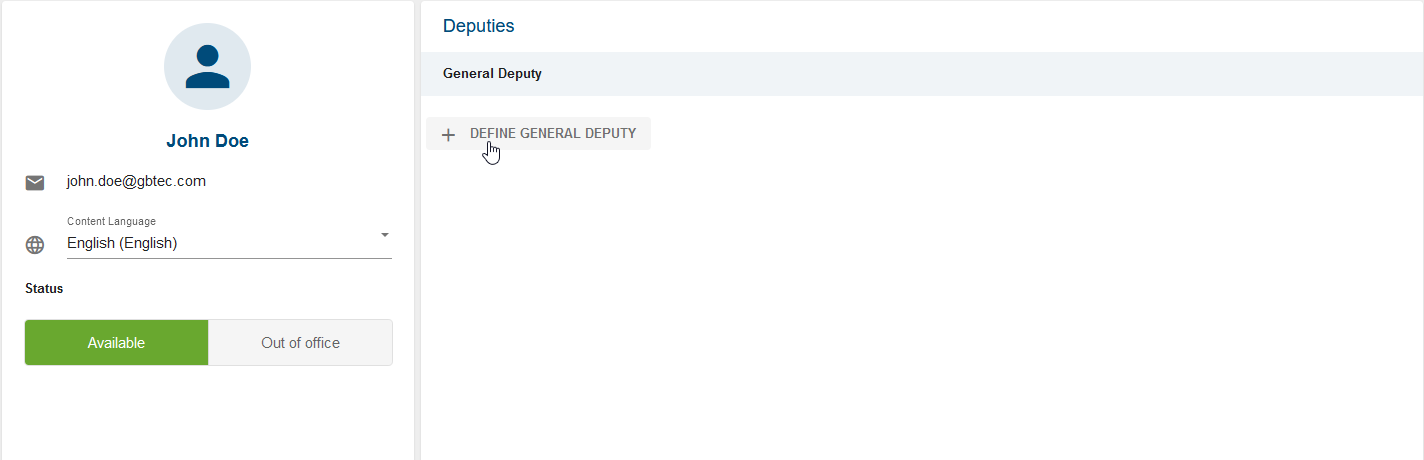
An input field will appear where you can enter the name of your general deputy.
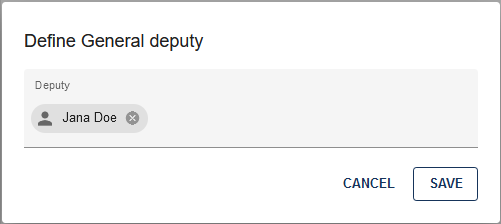
Use the Save button to save your general deputy. After the confirmation your deputy will appear on the right in the overview.
How can I remove my current general deputy?
To remove your general deputy, you must first open your profile. On the right side you can see the Deputy overview and your general deputy.
To the right of your deputy’s name is a trash can icon. Select this icon.
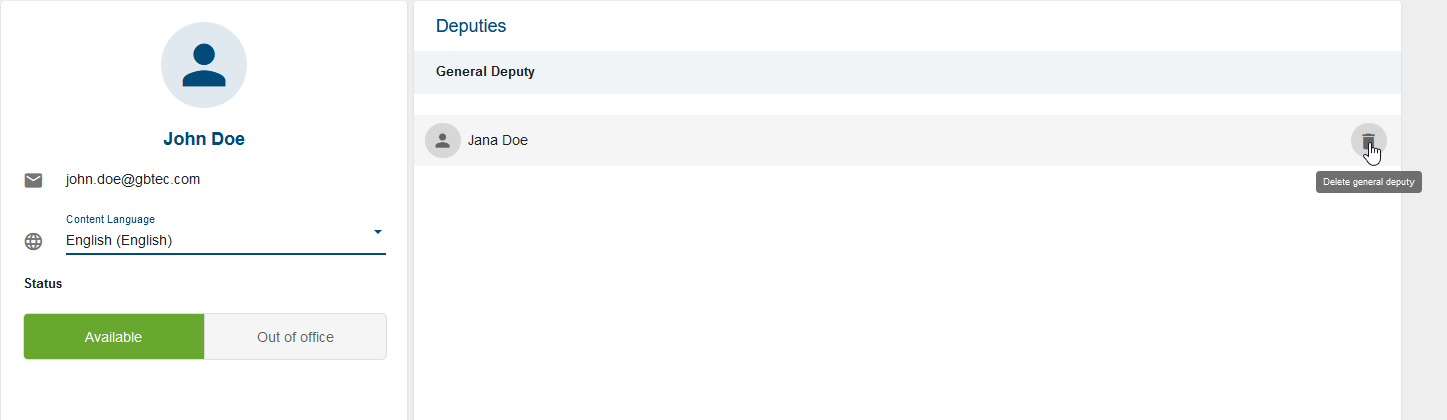
A dialog will appear. Select the Remove General Deputy option here. After confirming, your general deputy will be removed.
How do I change language settings?
To change the content language of your GBTEC Work Orchestrator application, navigate to the Profile from the menu.
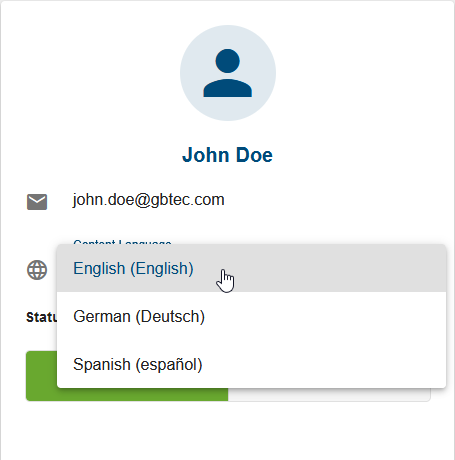
Here you can select the desired content language from the drop-down menu. If you have not selected anything else, the default content language will be the language that was specified as the preferred language in the User language under the User Details in your administration in GBTEC Process Design.
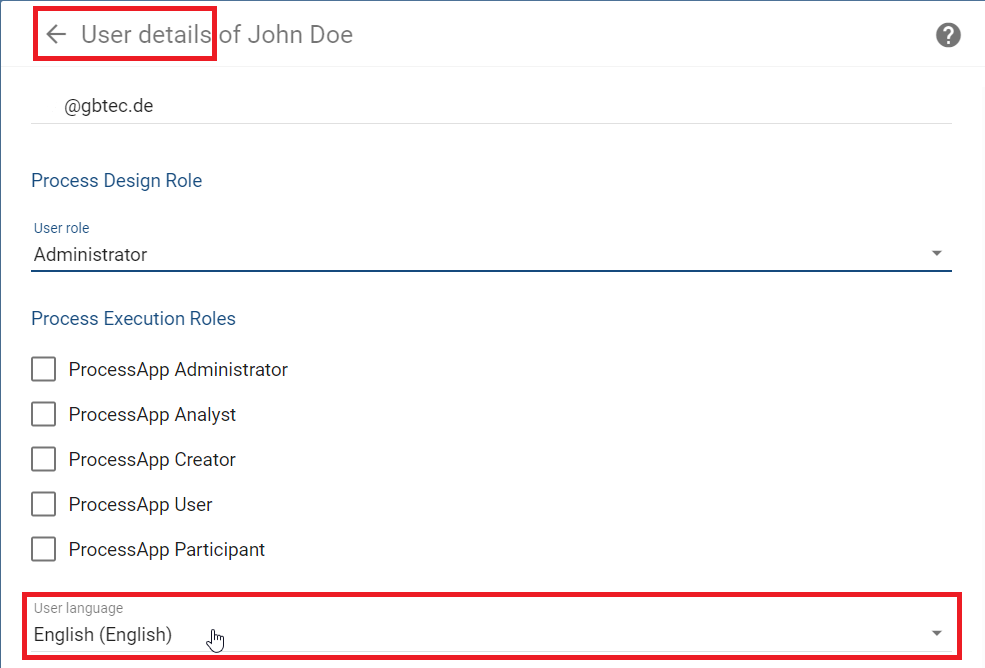
Once you have selected a suitable content language, your settings will be adopted in GBTEC Work Orchestrator. This setting persists even if you close the application or clear the cache from your browser.
Note
Changes to the content language applied to the GBTEC Work Orchestrator application do not affect the content language settings of your GBTEC Process Design. This allows you to set different content languages in the two applications.
Note
The content languages available to you are derived from the languages specified in the administration area of your GBTEC Process Design.
Hint
Please note that when switching to the alternative language, process names, descriptions and forms are displayed in this language if a translation is available. Otherwise, the content remains in the original content language. The user interface and system messages remain unchanged and continue to be displayed in your browser language.
Hint
Please note that notifications and emails are displayed in the content language even if you have switched to the alternative language.
How can I change the language of the user interface (UI)?
You have the possibility to change the language of your user interface. As in your GBTEC Process Design, the UI language depends on the browser settings that have been selected for that browser. For more information about this topic, click here.
Note
If the UI language settings cannot be applied, the user interface will be displayed in English by default.