Search
How can I use the Search in GBTEC Process Design?
You can use the global search in GBTEC Process Design. To do this, click the menu item Search in the left menu bar.
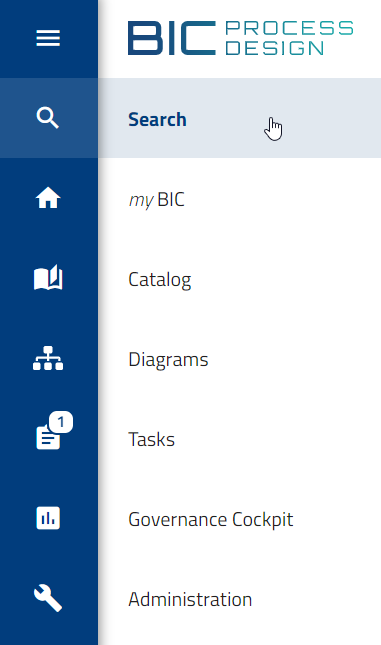
The search results depend on the current repository, stage, and selected content language. Enter a search term in the search field. Then press the Enter key or click the magnifying glass.
The search looks in the currently open repository. The results are shown in a list, sorted by how relevant they are to your search term. The top bar shows how many results were found.
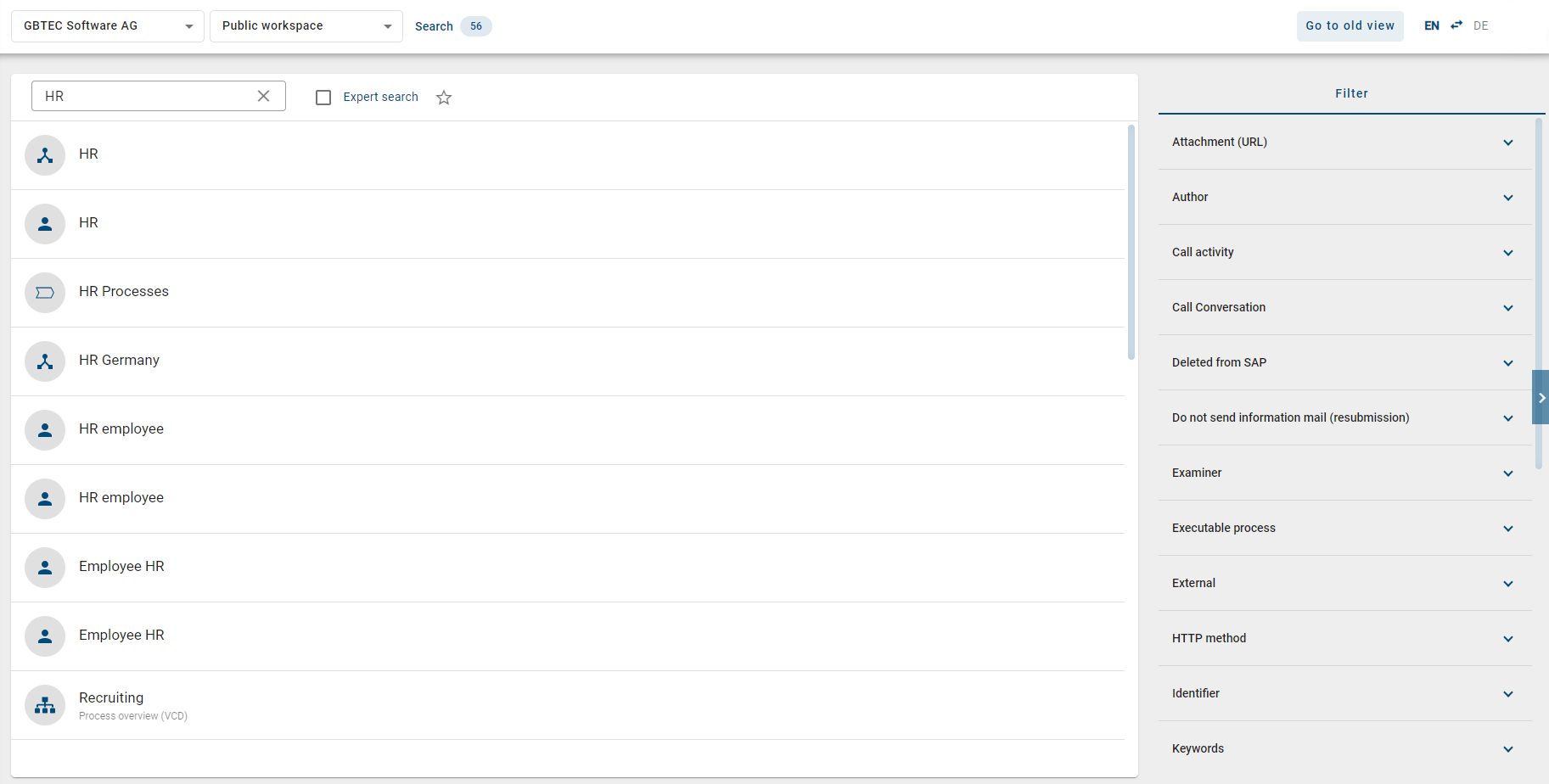
The search results include all entities in GBTEC Process Design, such as diagrams and catalog items. Clicking a search result takes you to its details page.
To make your search more precise, you can turn on Expert search in the Filter panel on the right. If you put an asterisk (*) in your search, expert search turns on automatically. Expert search lets you use special words, symbols, or wildcards in your search. You can see all expert search options in the section about search options.

You can also filter the search results.
Warning
Please note that you can only search for access-restricted diagrams or catalog items if you are a governance participant. This is true even if you have the Administrator role. Changes to users or groups in the Administration can cause access restrictions to stop working. Make sure user and group information is always correct in both the administration and the catalog.
Tip
In many views, for example in Search, Diagrams, Catalog, or Governance Cockpit, you will see a right sidebar. You can adjust its width by moving the mouse to the left edge until the cursor changes, then holding the left mouse button and dragging the edge left or right. You can also close the sidebar using the Collapse button next to the tabs at the top and open it again using the Expand button. When reopened, the sidebar automatically restores the previously set width.
How can I search for specific content in GBTEC Process Design?
You can use the global search in GBTEC Process Design by clicking the menu item Search in the left menu bar. This allows you to search for specific entities in GBTEC Process Design, and you can also use the search function next to the central search, in the diagram list, the catalog, and the Governance Cockpit.
A search always depends on the selected stage and content language. The stage does not change by navigation. If you are searching in the stage Publication and English is your content language, all objects and diagrams maintained in this language and existing in the publication will be listed.
In all functional areas, the search field is displayed in the Filter panel in the right sidebar.



Enter the search term into the search field and confirm by pressing the Enter key or the magnifying glass.

It is searched in the currently open repository. The search results are displayed in a list sorted by relevance for the search term. In the top bar, the number of results is shown.
Click the X icon to cancel the search and view all entries of the list again.

Tip
In case the search entry is a diagram you can open it directly with a click on the name.
Warning
Please note that you can only search for access-restricted diagrams or catalog items if you are a governance participant. This is true even if you have the Administrator role. Changes to users or groups in the Administration can cause access restrictions to stop working. Make sure user and group information is always correct in both the administration and the catalog.
What options do I have to search for specific terms?
You can use the global search in GBTEC Process Design by clicking the menu item Search in the left menu bar, and always keep in mind the search functions described below:
The search is not case-sensitive.
Line breaks and multiple spaces are treated as one space.
Phrase search: If you put the search term in quotation marks, it must match exactly. For example, “process implementation” must appear exactly like that. Wildcard characters are not used in phrase searches.
The following options are available for the search terms in the simple search.
Search for one word: If your search term has no wildcard characters, it is searched everywhere. For example, searching for “Process” also finds “Process model”. The system treats Process as Process* when searching.
Search for several words: If you search for two or more words, they are combined with OR. This means it is enough if one of the words is found. Wildcards (*) are also added. For example, process implementation is searched as process* OR implementation*.
Expert search:
In the central search, you can enable the expert search. Then you can use the following search options.
Search with special words: The search knows special words, which are interpreted, if they are part of the search term: AND, OR and NOT
AND: Words connected with AND must both appear in the results, for example, development AND software.
OR: Words connected with OR can appear in the results, but do not have to. It is enough if one of the words is found.
NOT: Words connected with NOT must not appear in the results, for example, development NOT software.
Note: Do not confuse this with searching for several words (see above). Wildcards are added when searching for several words, but not when using special words like AND, OR, or NOT.
You can also use “!” or “-” instead of NOT (without the quotes).
Search with special characters: The search knows special characters, which are interpreted, if they are part of the search term: +, - and !
These characters are not allowed at the beginning of a search term.
If a + precedes a search word, this word must exist in the results, other search words are optional, e.g. development +software.
If a - or a ! precedes a search word, this word must not exist in the results, the other search words must appear, e.g. development -software or development !software.
Search words with NOT, - and ! give the same results.
Search term with wildcard characters: These characters serve as placeholders within search terms to find more relevant results. By using a wildcard, the search term is expanded by an arbitrary number of characters. You can manually add wildcards to your search term. By default GBTEC Process Design automatically searches with wildcards at the end of every word.
The star * stands for none, one or more characters, e.g. “*process” will find “process” and any term that ends with “process”, like “default-process”
The question mark ? represents exactly one character, e.g. implement?tion
Group terms to form partial queries: The search recognizes round brackets in the sense of grouping clauses. This allows you to control the Boolean logic of a query.
For example, the query “a AND (b OR c)” will search for “a AND b OR a AND c”. If the brackets are not set, “a AND b OR c” is interpreted as “(a AND b) OR c”.
How can I filter search results?
You can use the global search in GBTEC Process Design by clicking the menu item Search in the left menu bar. In the central search, you can filter the results using the filter in the right sidebar. If you get search results, you will see their types and available attributes as facets in alphabetical order, which you can expand or collapse by clicking the facet headings.
Expand a facet to see all filter options listed that correspond to the attribute values or result types. By setting a check mark for a filter, the search results are filtered according to this attribute value or result type. Multiple filters can be set simultaneously.
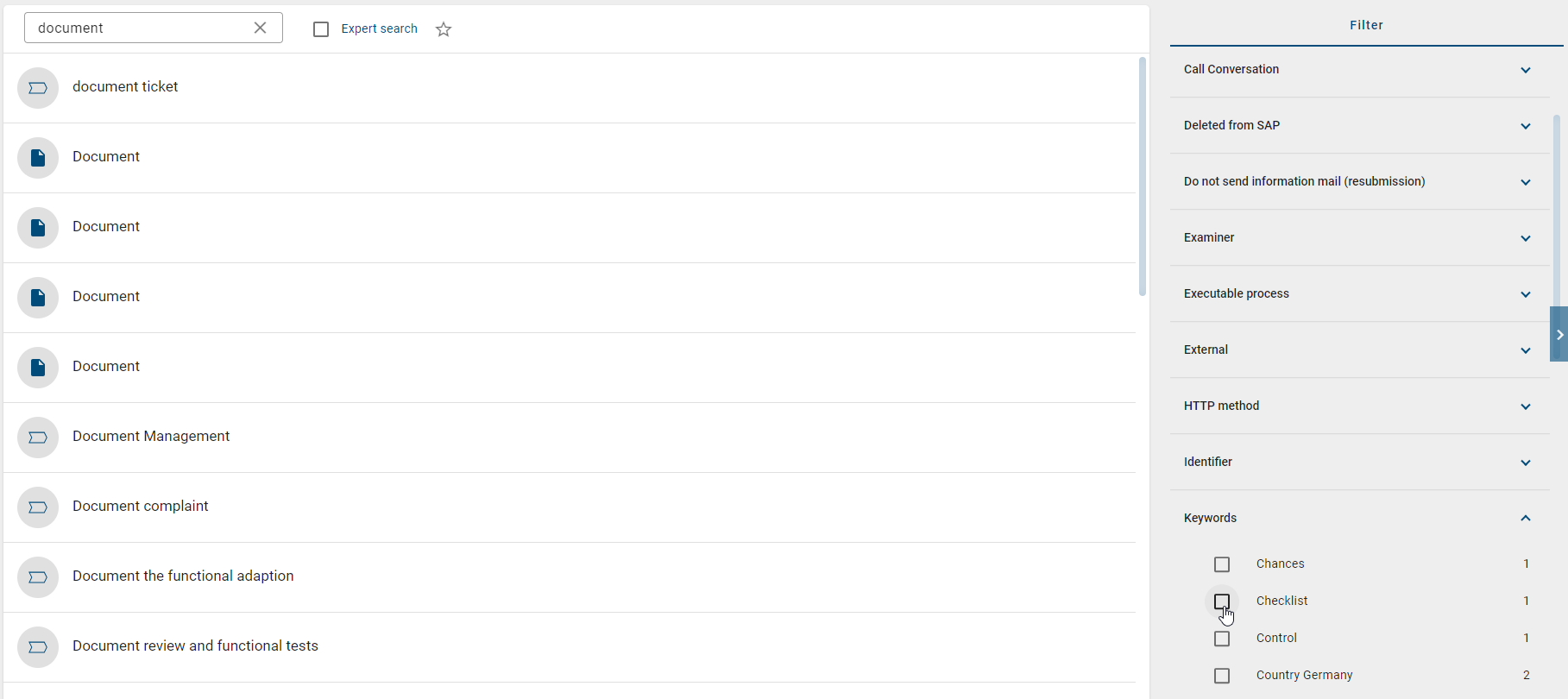
Available filters can be set via the administration.
How can I search for keywords?
Every user can search for keywords. To do this, open the Search menu item in the left menu bar and enter a word in the search field. Start the search and then open the Filter panel in the right sidebar. Select the Keywords filter there.

Select one or more keywords to update the search automatically. It then shows all content assigned to these keywords. To deselect a keyword, click it again. You can also revoke the selection using the reset button at the top right.

The search results are now filtered by the selected keywords.
How can I bookmark a search?
Every user can bookmark a search. To do this, open the Search menu item in the left menu bar and run the desired search with all filters. Save the search as a bookmark in your browser. Open the saved URL to run the search again later and view the results. The search always opens in the content language that was active when it was saved.
To share a search with other users instead, see the Collaboration chapter.
How can I save a search as favorite?
You can use the global search in GBTEC Process Design by clicking the menu item Search in the left menu bar. To make it easier to access a frequently used search and its results, each user can save the search, including search settings, as a personal favorite, and these favorites will appear on the user’s MyGBTEC page as a tile. To do this, follow the steps below.
Click on the Search menu item in the left menu bar and type your term in the search field. Start the search by pressing Enter or clicking the magnifying glass icon. Then go to the Options panel in the right sidebar and click the Add to favorites option.
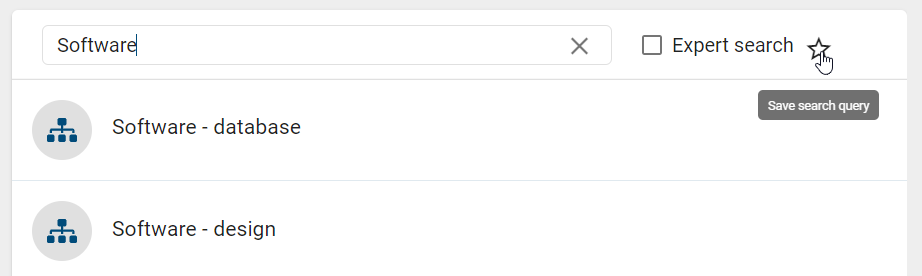
After you click this option, a dialog will open asking you to name the search query. Once you have assigned a name, the Save button is enabled and you can add the query as a favorite. Alternatively, you can cancel the process at any time using the Cancel button.

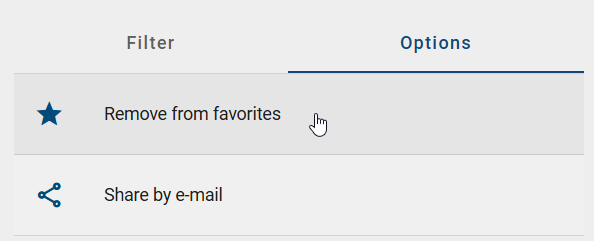
Once you have added the query to your favorites, the Add to favorites option in the Options panel in the right sidebar will change to Remove from favorites. Clicking this option allows you to remove the saved search from your favorites.
Your search favorites now appear as tiles on your MyGBTEC page. Clicking on a search favorite tile will take you directly to the corresponding search results in the central search.
Note
In the mobile view, you can find the option to save (or remove) a search as favorite in the context menu (three-dot menu).