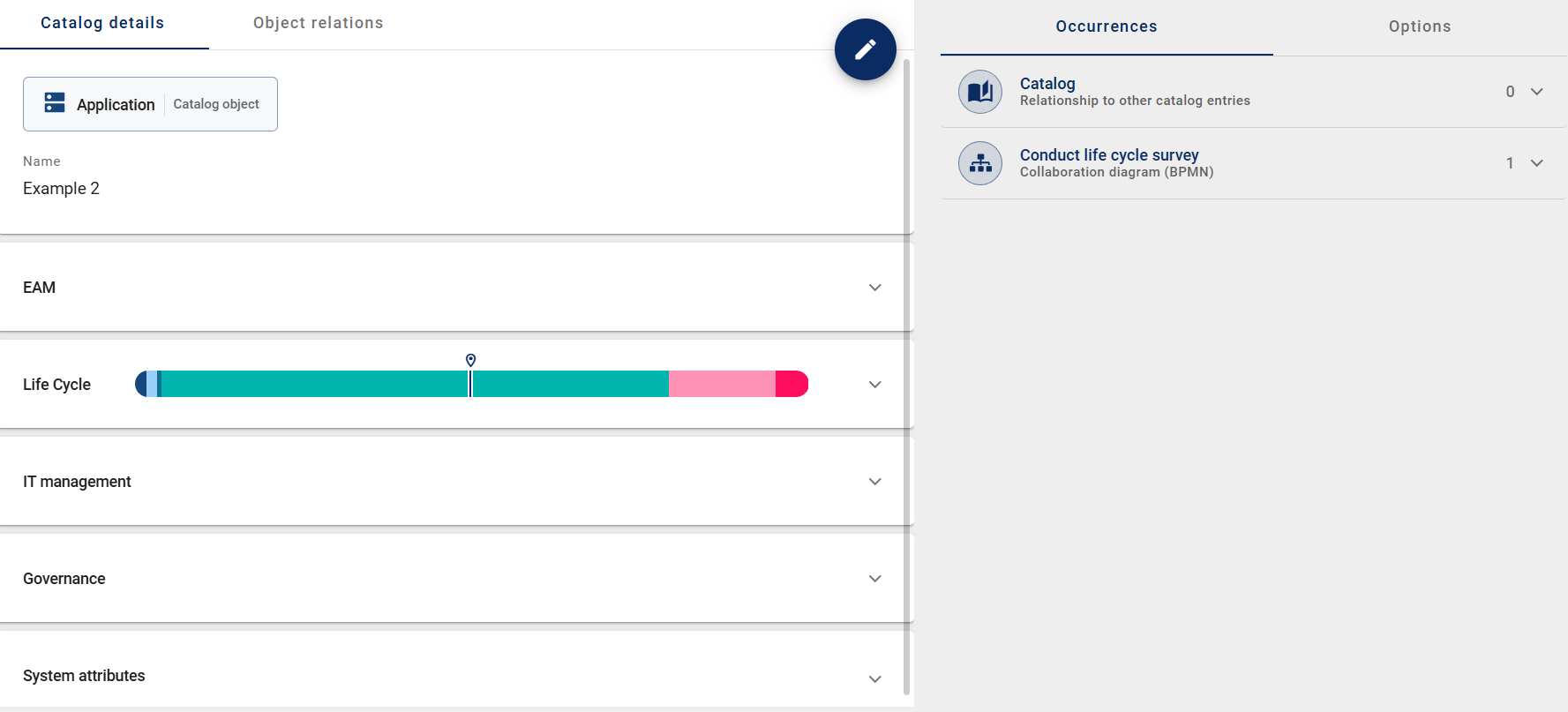
Catalog
Catalog items for GBTEC Enterprise Architecture are created and managed through the same Catalog menu item as in GBTEC Process Design. General functions such as creating, searching, filtering, and editing catalog items are therefore described in the chapter Catalog of GBTEC Process Design.
This chapter covers the functions that are available specifically for GBTEC Enterprise Architecture: EAM context references and the lifecycle roadmap of catalog items.
EAM context reference
What is an EAM context reference and how can I view it?
If GBTEC Enterprise Architecture has been purchased and activated, every user can view EAM context references in the catalog. An EAM context reference is a business capability or an application stored as a context reference in a business capability context diagram or application context diagram. You can find out how to store EAM context references here.
Open the Catalog menu item in the left menu bar and then open a catalog item of the type Application or Business Capability. If the item was previously stored as a context reference, an additional attribute group appears in the detail view. This group is named after the context diagram in your content language. Click it to expand it.
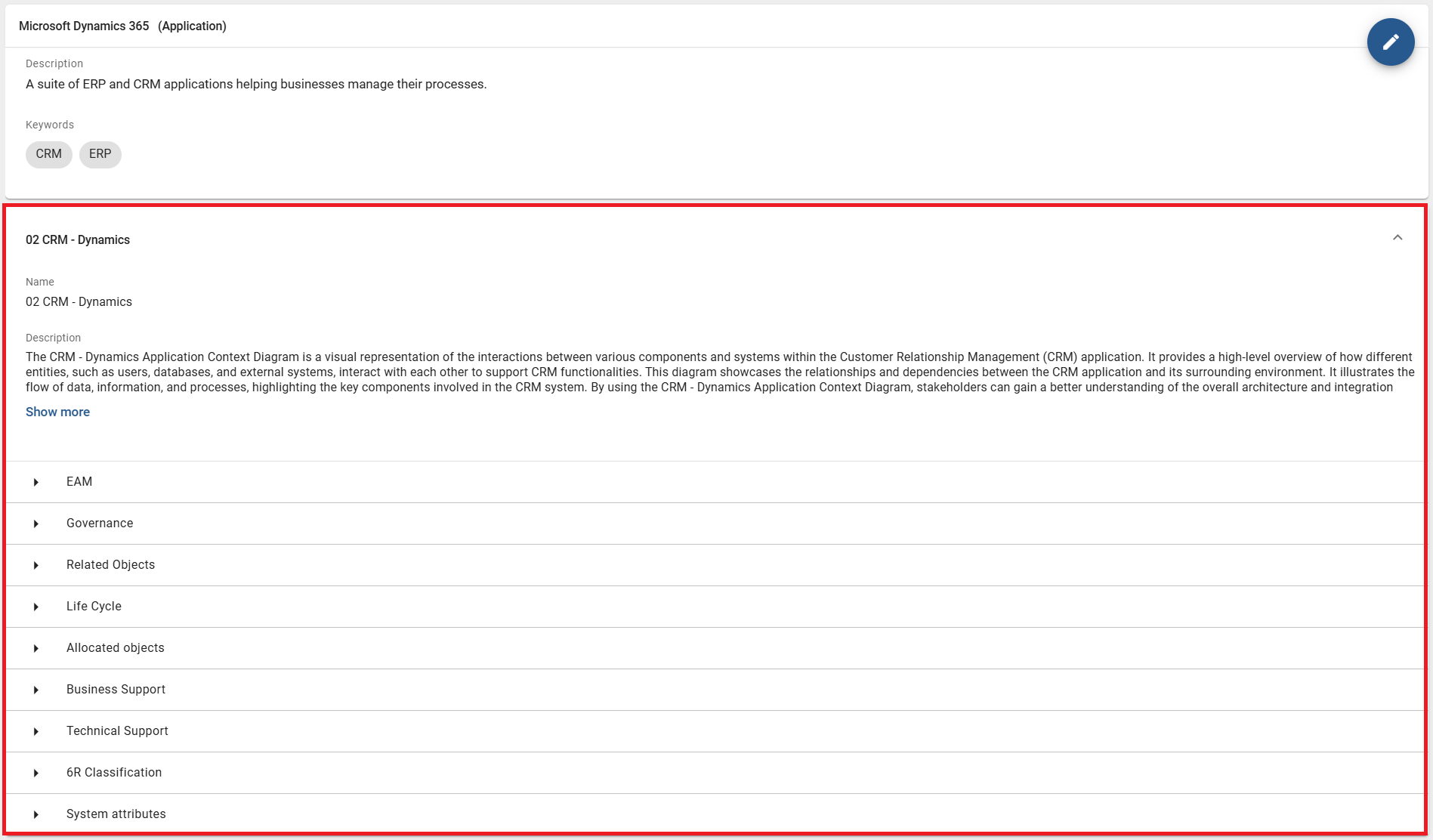
When you expand the attribute group, you see the details of the context diagram and the occurrence attributes of the selected catalog item stored as a context reference.
Hint
If access to the context diagram is restricted, the attribute group is still shown. However, when you expand it, you receive an error message.
How do I store an EAM context reference?
If GBTEC Enterprise Architecture has been purchased and activated, users with the Administrator, Editor, or Author user role can store EAM context references in the catalog. Users with the Author role must also be listed in the Author governance attribute of the diagram.
Open the Diagrams menu item in the left menu bar. Open a business capability context diagram or an application context diagram and check it out using the Check out button.
In the right sidebar, find the EAM attribute group in the Details panel. When you expand this attribute group, the Context reference input field appears. For business capability context diagrams, select a catalog item of the type Business Capability. For application context diagrams, select a catalog item of the type Application.

Once you save and check in the diagram, an additional attribute group appears in the detail view of the stored catalog item. This group is named after the context diagram in your content language. It contains the details of the context diagram and the occurrence attributes of the assigned catalog item.
Hint
You can only store one context reference per diagram.
Hint
If access to the context diagram is restricted, the attribute group is still shown. However, when you expand it, you receive an error message.
How can I create an EAM context reference via the catalog?
If GBTEC Enterprise Architecture has been purchased and activated, users with the Administrator, Editor, or Author user role can create one or more context references for applications and business capabilities via the catalog.
Open the Catalog menu item in the left menu bar. Select a catalog item of the type Application or Business Capability from the list. Switch to the Options panel in the right sidebar and click the Create context option.
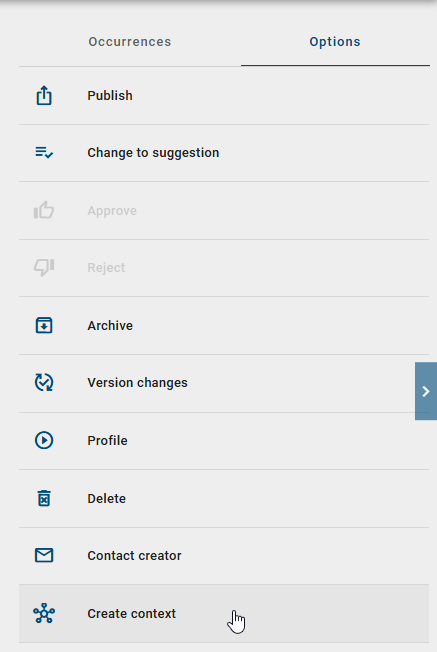
A dialog opens. Enter a name for the new context diagram in the input field.
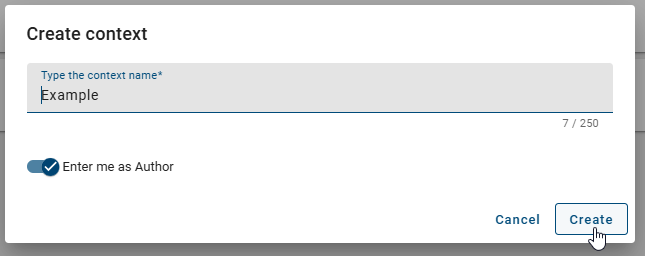
Click the Create button to confirm. A new application context diagram or business capability context diagram is created automatically. The new context reference appears as a new attribute group in the detail view of the catalog item.
Hint
When you create a new context diagram, the currently opened application or business capability is automatically stored as the parent object in the system. The diagram is also marked as a context diagram created in the catalog.
How can I edit an EAM context reference?
If GBTEC Enterprise Architecture has been purchased and activated, users with the Administrator, Editor, or Author user role can edit EAM context references of applications and business capabilities in the catalog.
Open the Catalog menu item in the left menu bar. Open a catalog item of the type Application or Business Capability. If a context was previously created via the catalog, an additional attribute group appears in the detail view. This group is named after the context diagram in your content language.
When you expand the attribute group, you see the Check out button on the right side. Click it to check out the diagram. The diagram is then locked for other users and available for you to edit.

Hint
If the context reference was stored via diagram modeling, you cannot edit the diagram in the context reference.
While the diagram is checked out, you are in edit mode. Make your changes and click the Check in button to save them. The diagram is checked in again and becomes available to other users.
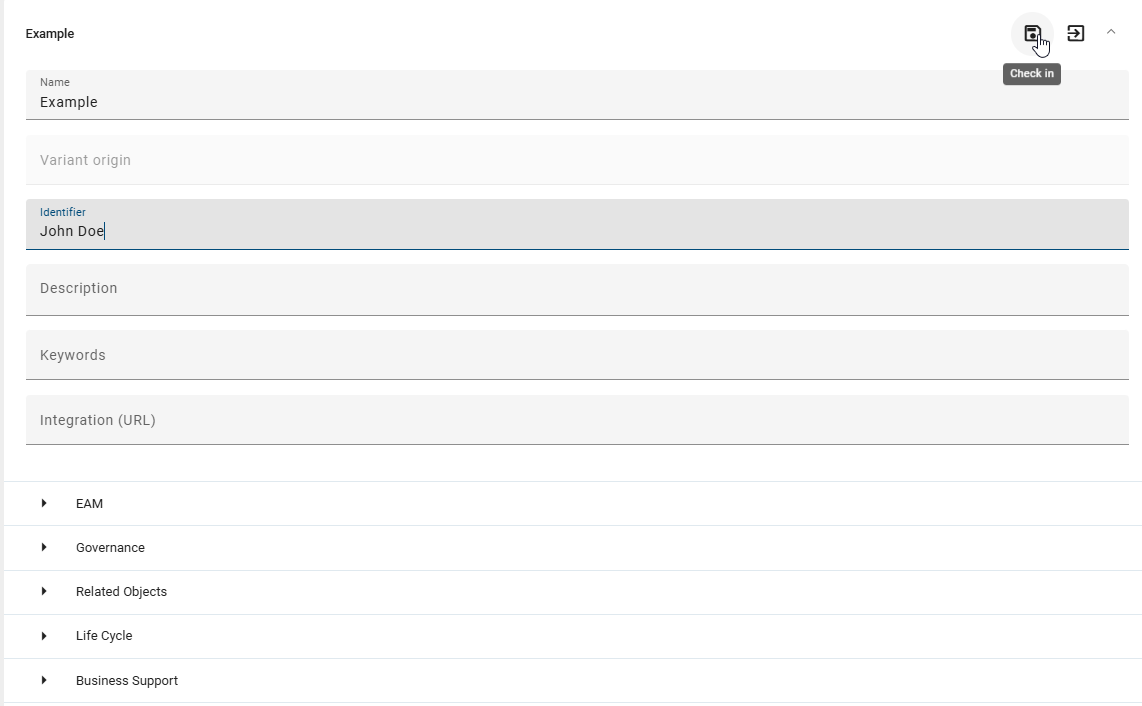
If you try to leave edit mode with unsaved changes, a dialog appears with the following options:
Click the Save changes button to save your changes.
Click the Leave without saving button to leave the edit mode without saving. Your changes are then lost.
Click outside the dialog to cancel the process. You then stay in edit mode.

In the checked-out context diagram, you can also edit attributes of objects linked via relationship attributes. Click a relationship attribute to see the corresponding object’s attributes in the Details panel in the right sidebar. You can adjust them directly.
You can also add more linked objects. Click the chip of a linked object in the sidebar to display or edit its attributes. Click the Close button to return to the previous view.
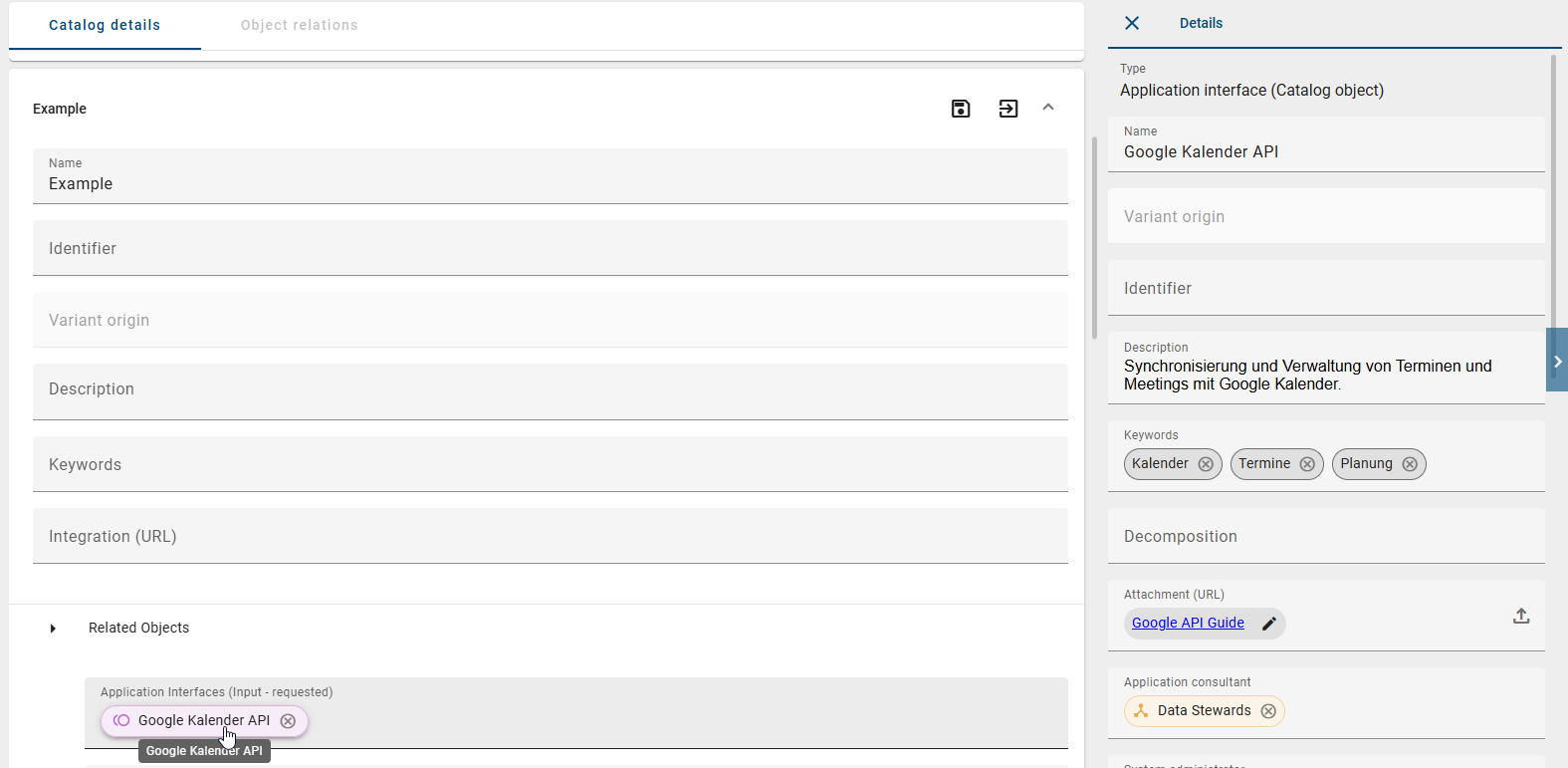
Hint
The options described above only apply to objects linked via relationship attributes. Other assignments are also displayed as chips but can only be viewed, not edited.
Warning
When you delete a linked object, all other objects linked to it are also deleted.
Note
If a context diagram is currently checked out by another user, it is locked for you. An icon marks the locked state. When you hover the mouse pointer over this icon, you see which user has currently checked out the diagram.
Tip
In the catalog view, click the corresponding object chip to navigate directly to a linked object. This lets you follow relationships step by step. Use the Back button in GBTEC Process Design or your browser navigation to return to previous objects at any time.
How can I use Arty recommendations for linked objects in EAM context references?
If GBTEC Enterprise Architecture and Arty have been purchased and activated, users with the Administrator, Editor, or Author user role can use Arty recommendations for linked objects in EAM context references.
Open the Catalog menu item in the left menu bar. Open a catalog item of the type Application or Business Capability. If a context was previously created via the catalog, an additional attribute group appears in the detail view. This attribute group is named after the context diagram in your current content language.
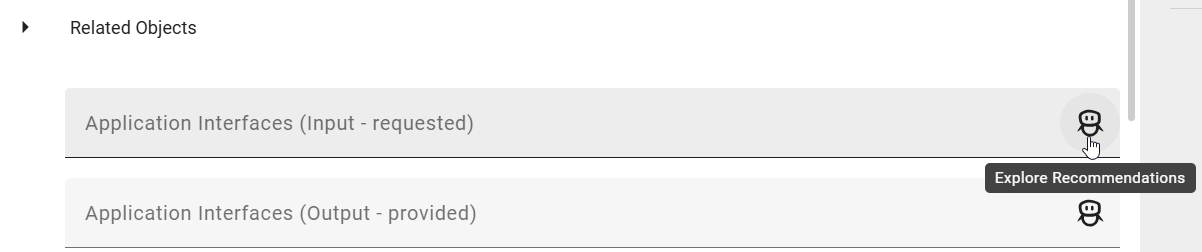
Expand the attribute group and click the Check out button on the right side. In edit mode, you see the Explore Recommendations button for each relationship attribute of the reference object in the Related Objects section. Click this button to receive recommendations for the corresponding relationship attribute.
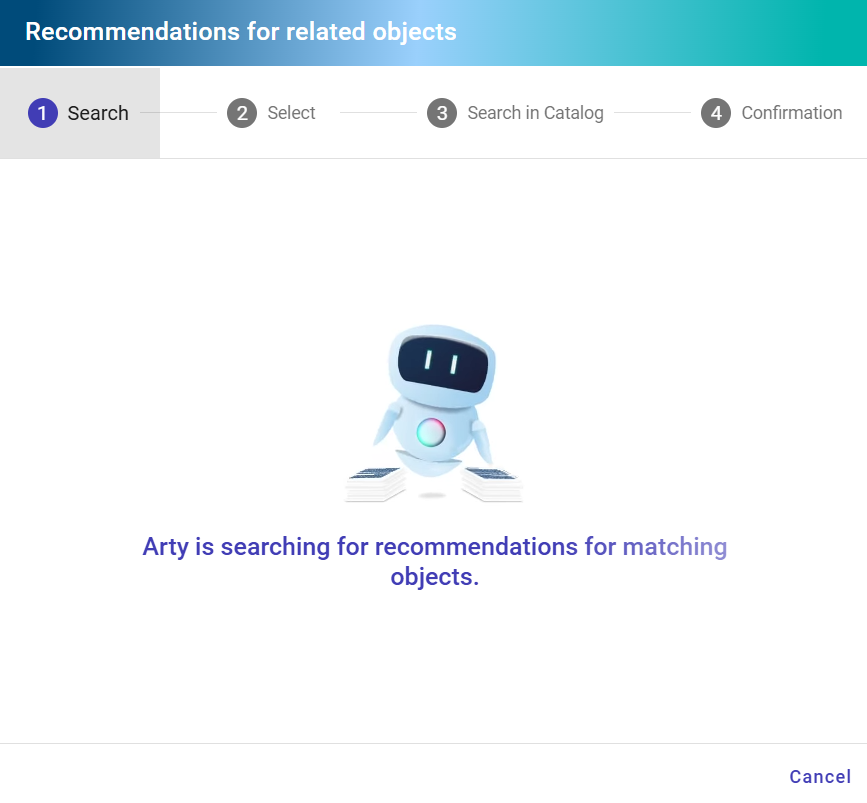
The dialog guides you through four steps.
Step 1: Search
Arty automatically searches for suitable objects to link. The search is based on the current context, the context reference object, and the selected relationship attribute. For example, if you are working on an application and select the Interface attribute, Arty suggests suitable candidates. You can cancel the search at any time using the Cancel button.
Step 2: Select
After the search, Arty shows a list of up to 10 recommendations. Each recommendation contains a name and a brief description in your content language. Select the desired recommendations via the checkboxes. Then click the Next button.
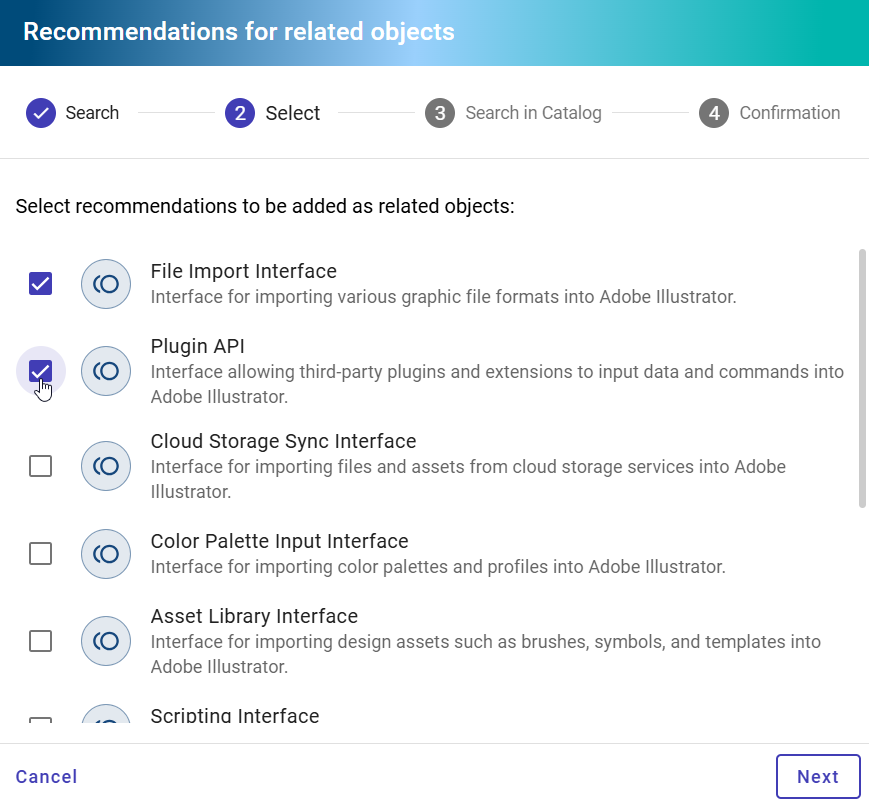
Step 3: Search in Catalog
Arty searches the catalog for existing objects similar to the selected recommendations. For each recommendation, you see the following options:
A list of similar, already existing catalog items
The option to create a new object
For each recommendation, select an existing catalog item or create a new object.
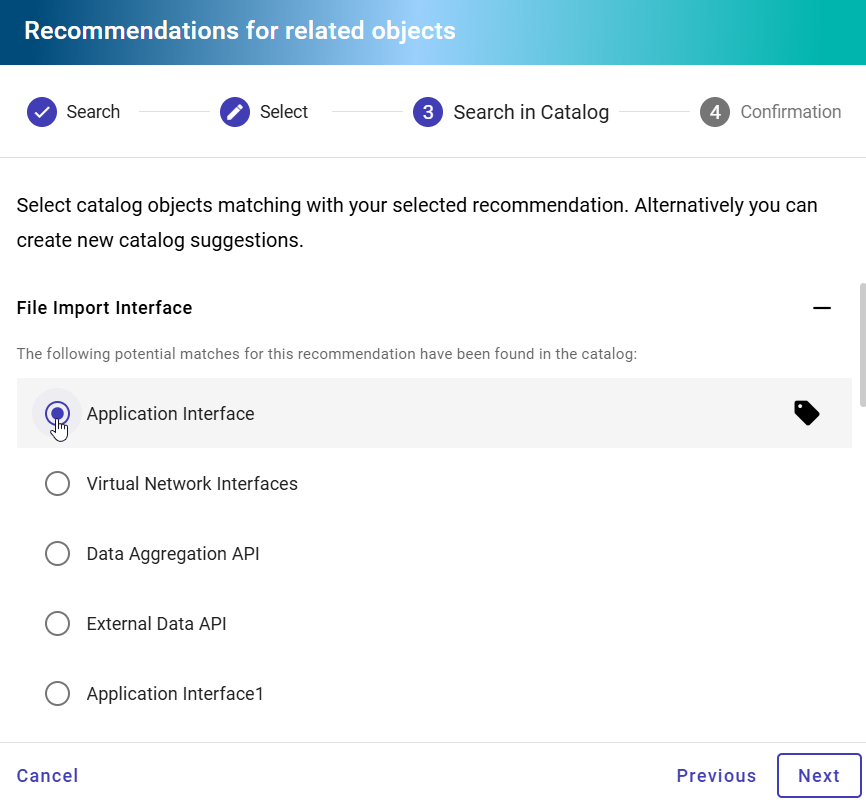
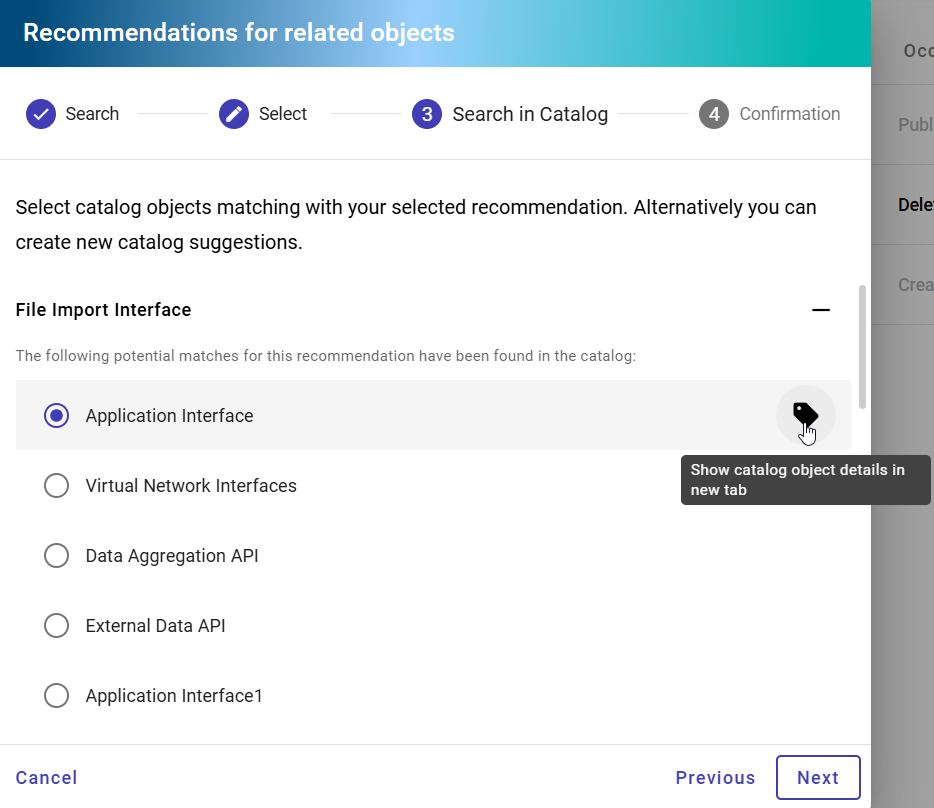
Use the Show catalog object details in new tab button to open an existing object in a new tab and inspect its attributes.
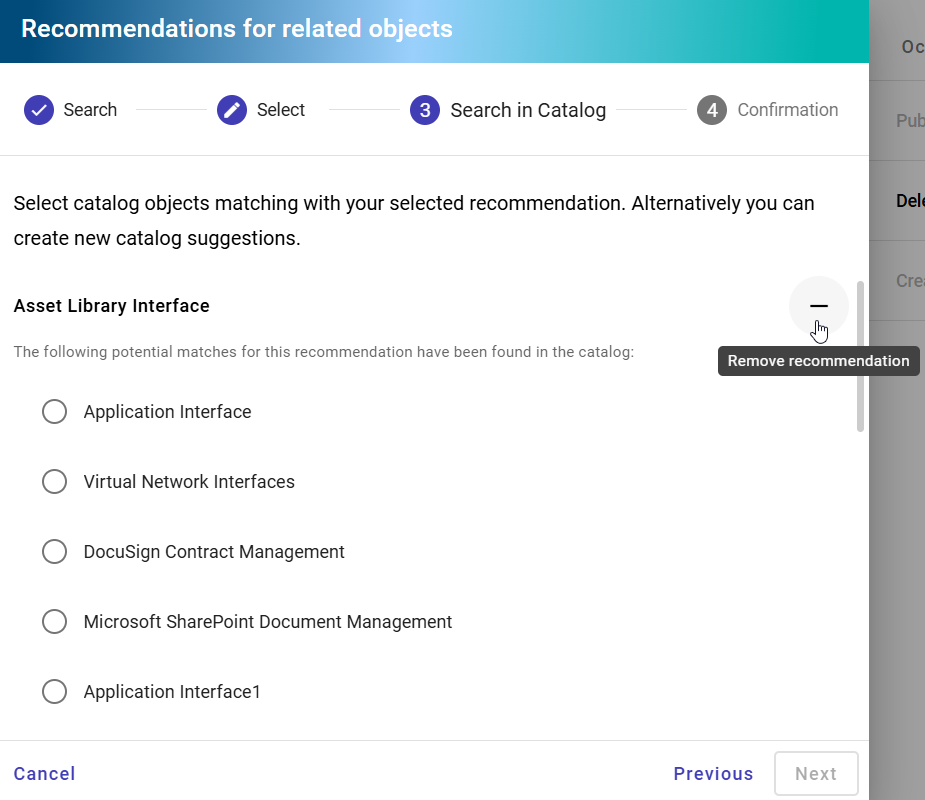
If an object is already present in the relationship attribute, it is marked with the Already present hint. Use the Remove recommendation button to remove a recommendation from the list.
Hint
The last remaining recommendation cannot be removed.
Then click the Next button.
Step 4: Confirmation
In the last step, you see a summary of all selected objects. The summary shows:
Objects that will be created
Existing objects that will be added
Click the Confirm and close button to add the objects to the relationship attribute. Newly created objects are added as catalog proposals. The dialog closes automatically and a confirmation message appears in the lower right corner.
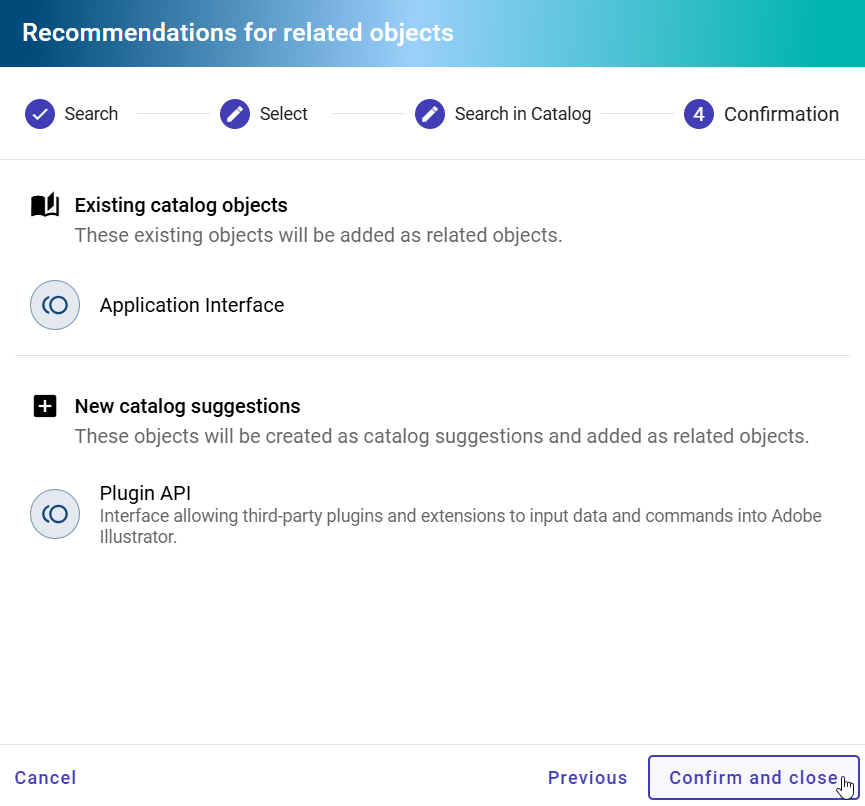
You can close the dialog at any time using the Cancel button. In this case, no objects are created and no objects are added to the relationship attribute.
Note
Arty only considers objects from the Public workspace stage when searching the catalog. Objects that you do not have access to are not displayed.
Hint
This option is provided by Arty, our AI Modeler. A separate license is required. See also the notes on using the AI feature.
How can I copy and paste the details of linked attributes of a context diagram?
If GBTEC Enterprise Architecture has been purchased and activated, users with the Administrator, Editor, or Author user role can copy the attributes of linked objects in the catalog and paste them into a context reference.
Open the Catalog menu item in the left menu bar. Open a catalog item of the type Application or Business Capability. If a context reference was previously stored or created via the catalog, an additional attribute group appears in the detail view. This group is named after the context diagram in your content language.
Expand this attribute group. All maintained attributes are displayed as object chips in alphabetical order. Click an object chip. The details open in the right sidebar.
To copy the object with its details, click the context menu in the upper right corner of the details view. Select the Copy option.
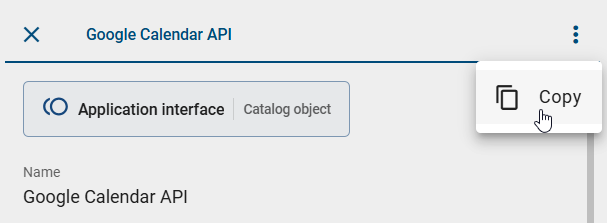
The object and its details are copied to the clipboard. To paste it into another context reference, that reference must be checked out. The Paste option then appears in the matching input fields in the Related objects section.
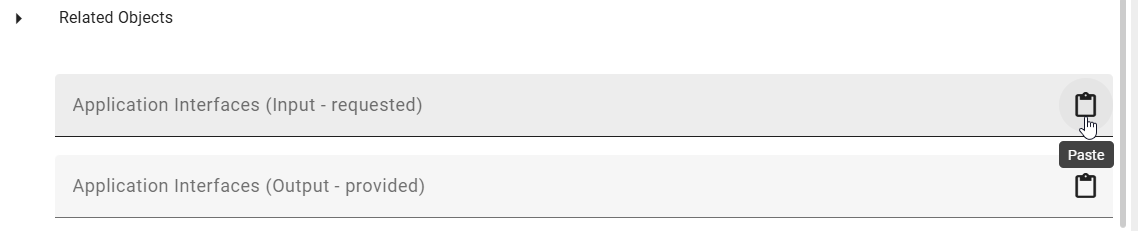
Click the Paste option. The object from your clipboard is inserted as a chip.
Save your changes by using the Check in button.
How can I view the details of linked attributes of a context diagram?
If GBTEC Enterprise Architecture has been purchased and activated, users with the Administrator, Editor, or Author user role can view the attributes of linked objects in the catalog.
Open the Catalog menu item in the left menu bar. Open a catalog item of the type Application or Business Capability. If a context reference was previously stored for the catalog item or created via the catalog, an additional attribute group appears in the detail view. This attribute group is named after the context diagram in your current content language.
Expand this attribute group. All maintained attributes of the context diagram are displayed as object chips in alphabetical order. Each chip represents a linked object, for example a business capability or an application.
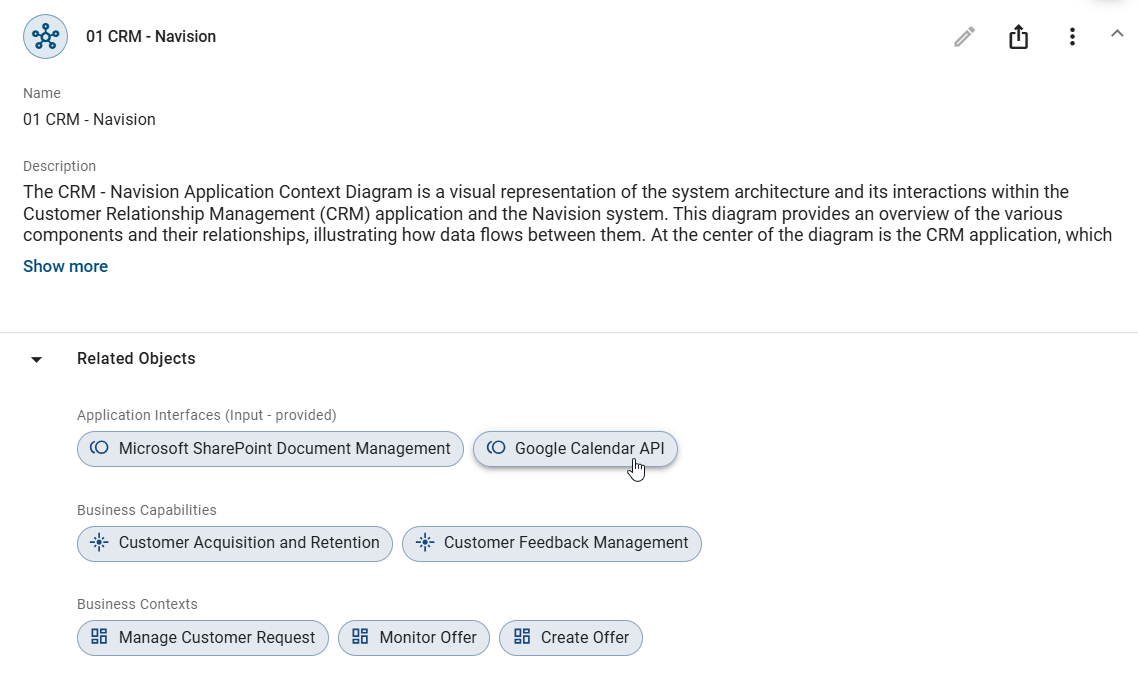
Click an object chip. The details of the selected object open in the right sidebar, including general attributes and occurrence attributes. This way you can view object details without leaving the catalog view.
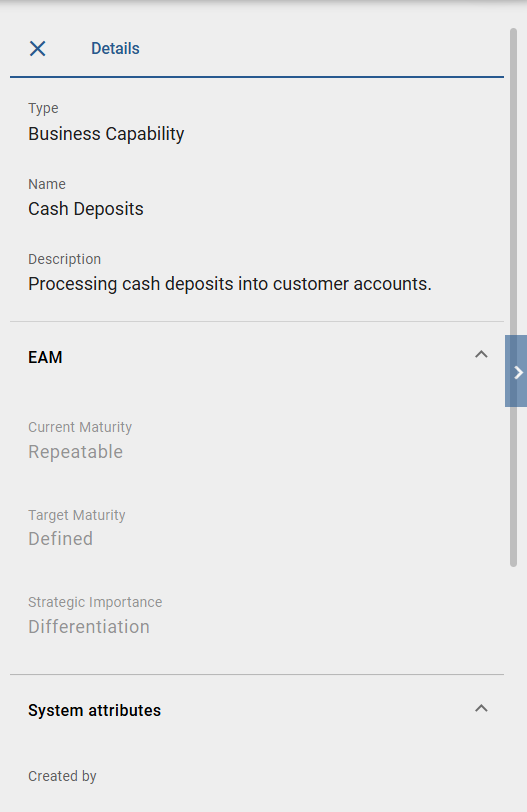
In the detail view of the right sidebar, you can also click a linked object chip to display the attributes of the selected object.
To close the attribute view, click the Close button in the upper left corner of the right sidebar.
Tip
In the catalog view, click the corresponding object chip to navigate directly to a linked object. This lets you follow relationships step by step. Use the Back button in GBTEC Process Design or your browser navigation to return to previous objects at any time.
How can I display context visualizations of a catalog item?
If GBTEC Enterprise Architecture has been purchased and activated, every user can display the contexts of a catalog item as a visualization.
Open the Catalog menu item in the left menu bar. Open a catalog item of the type Application or Business Capability. If one or more contexts are stored for the catalog item, the Context visualization tab appears in the header of the detail view.

The Visualize option is also available in the context menu of each linked context. This applies to both visually modeled and catalog-modeled contexts.
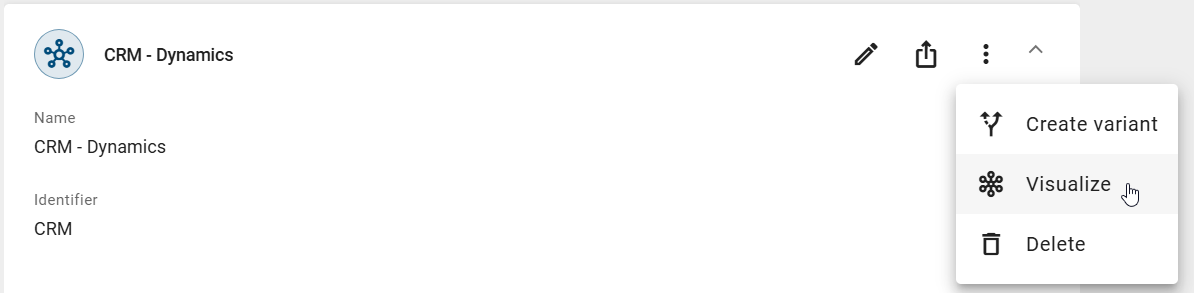
When you open the Context visualization tab, the first context is displayed. The order matches the order of contexts in the detail view. When you select Visualize in the context menu of a context, that context’s visualization opens directly.
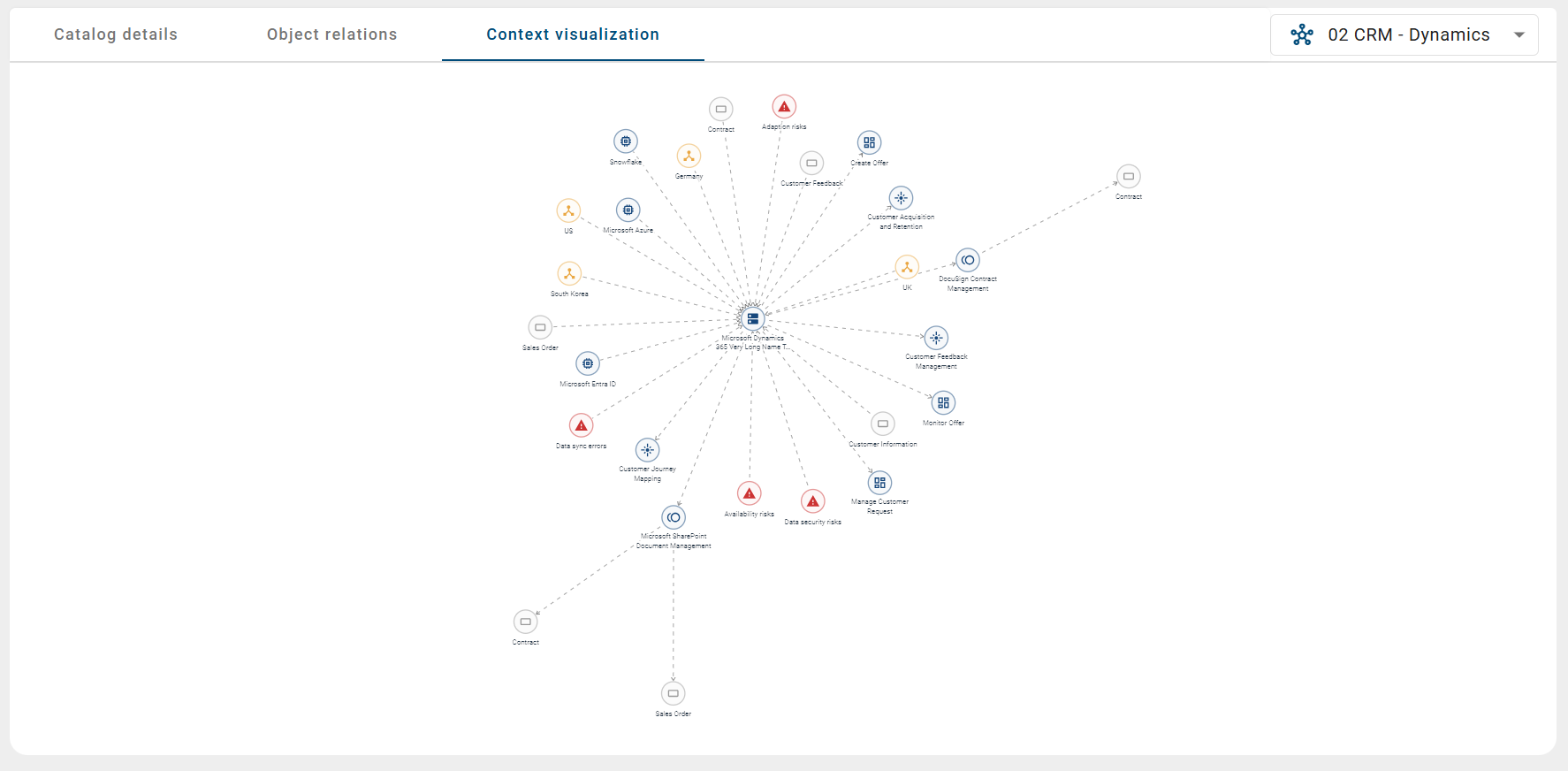
The visualization shows a central object, for example an application, and all objects linked to it. The lines between the objects represent the relationships.
In the right sidebar, you find the Details panel. As long as you have not selected an object in the visualization, the details of the current context diagram are displayed there, including the profile view.
Click on an object in the visualization to select it. The selected object is then highlighted in the visualization. At the same time, the Details panel in the right sidebar shows the corresponding attributes, including the profile view. Alternatively, right-click on an object to open the context menu and select the Show attributes option. If the sidebar was previously collapsed, it opens automatically.

If further objects are assigned to the selected object, you can also display their details in the sidebar. To deselect an object, click on it again. The sidebar then shows the details of the current context diagram again.
In the upper right of the view, you find a selection field. Use it to switch between the available contexts.
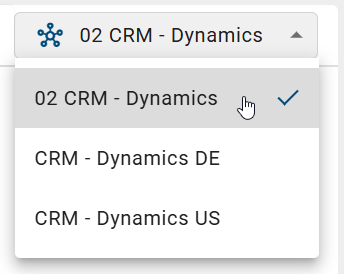
If you select a different context in the selection field, its visualization is loaded. The state of the sidebar (open or collapsed) remains unchanged. The selection is not saved. When you reopen the Context visualization tab, the first context in the list will always be displayed.
If the context visualization cannot be displayed due to an error, an error view is shown instead.
Note
You can save the currently opened context visualization as a bookmark via the URL. When you open this URL again, you return directly to the saved context visualization.
How can I validate an EAM context reference?
If GBTEC Enterprise Architecture has been purchased and activated, users with the user role Administrator, Editor or Author can validate EAM context references of applications and business capabilities in the Catalog.
Click the Catalog menu item in the left menu bar. Open a catalog item of the type Application or Business Capability. If a context reference was previously created for this item via the catalog, an additional attribute group is displayed in the details view.
Open the context menu (three dots) of the EAM context reference and click the Validation button.

The validation view opens in the right sidebar. It displays all validation issues found for the context reference. If no validation issues are found, a corresponding message is displayed.

Click on an item or chip in the validation view to navigate directly to the affected location. If required, the corresponding context diagram is opened automatically and the affected location is displayed.
Click the arrow icon Back to options list to close the validation view. The previous content of the sidebar is then displayed again.
Hint
The validation view also supports known quick actions, for example approving catalog suggestions.
How can I delete an EAM context reference?
If GBTEC Enterprise Architecture has been purchased and activated, users with the Administrator, Editor, or Author user role can delete EAM context references in the catalog.
Open the Catalog menu item in the left menu bar. Open a catalog item of the type Application or Business Capability. If a context reference was previously stored for the catalog item or created via the catalog, an additional attribute group appears in the detail view. This attribute group is named after the context diagram in your current content language.
On the right edge of the attribute group, click the context menu. Select the Delete option.

A dialog opens. Confirm the deletion by clicking the Delete button. The context diagram is then permanently deleted. Click the Cancel button to cancel.
How can I publish an EAM context reference?
If GBTEC Enterprise Architecture has been purchased and activated, users with the Administrator, Editor, or Author user role can publish EAM context references in the catalog.
Open the Catalog menu item in the left menu bar. Open a catalog item of the type Application or Business Capability. If a context reference was previously stored for the catalog item or created via the catalog, an additional attribute group appears in the detail view. This attribute group is named after the context diagram in your current content language.
On the right edge of the attribute group, click the Publish option.

A dialog opens. Enter the reason for the publication.
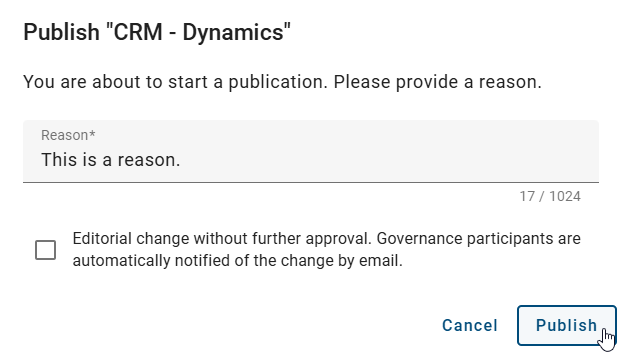
Click the Publish button to publish the context diagram. Click the Cancel button to cancel.
Note
A context diagram can only be published if a responsible person is stored in the diagram and the associated catalog item is not a catalog proposal. Otherwise, you receive an error message.
How can I depublish an EAM context reference?
If GBTEC Enterprise Architecture has been purchased and activated, users with the Administrator, Editor, or Author user role can depublish EAM context references in the catalog.
Open the Catalog menu item in the left menu bar. Make sure you are in the Publication stage. Open a catalog item of the type Application or Business Capability. If a context reference was previously stored for the catalog item or created via the catalog, an additional attribute group appears in the detail view. This attribute group is named after the context diagram in your current content language.
On the right edge of the attribute group, click the context menu. Select the Depublish option.
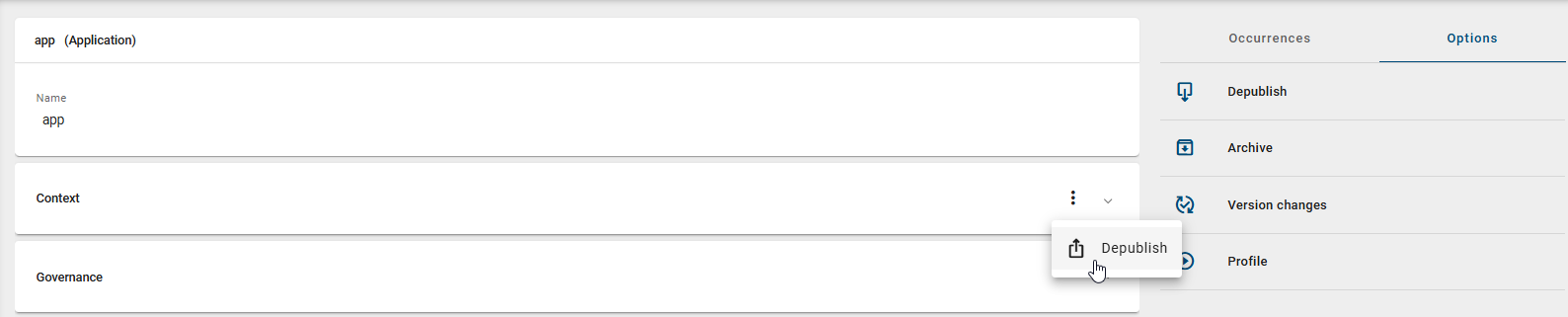
A dialog opens. Enter the reason for the depublication.
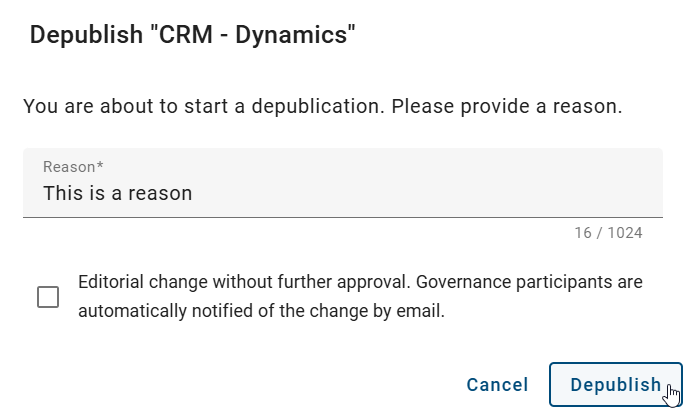
Click the Depublish button to remove the context diagram from publication. Click the Cancel button to cancel.
How can I create a variant of an EAM context reference?
If GBTEC Enterprise Architecture has been purchased and activated, users with the Administrator, Editor, or Author user role can create variants of EAM context references in the catalog.
Open the Catalog menu item in the left menu bar. Open a catalog item of the type Application or Business Capability. If the catalog item was previously stored as a context reference and the context reference was created via the catalog, an additional attribute group appears in the detail view. This group is named after the context diagram in your content language.
On the right edge of the attribute group, click the context menu. Select the Create variant option.
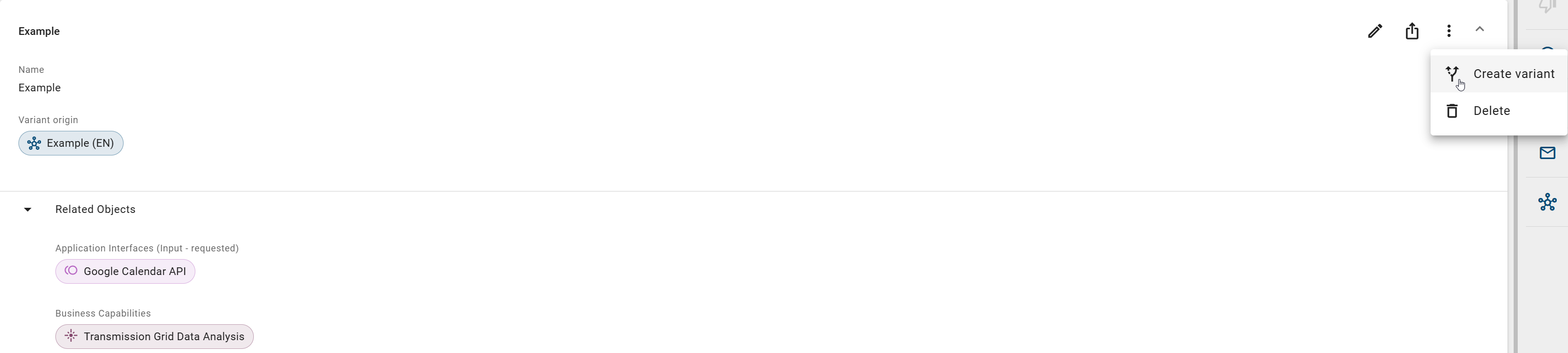
A dialog opens. Enter a name for the variant in the input field.
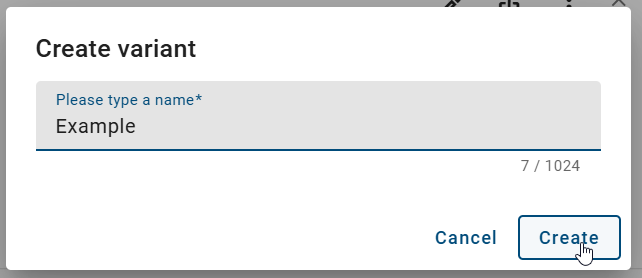
Click the Create button to create a variant of the context diagram. Click the Cancel button to cancel.
After clicking Create, the variant of the context reference is created. A confirmation message appears in the lower right corner of the screen. The new variant appears as an additional attribute group in the detail view. This attribute group is initially collapsed.
Note
When you create a variant of a catalog item, variants of the associated context references are not automatically created. You must create variants of the context references separately.
Note
Please note that you must not be in edit mode to create a variant of an EAM context reference.
How can I display differences between variants of an EAM context reference?
If GBTEC Enterprise Architecture has been purchased and activated, users with the user role Administrator, Editor, or Author can display differences between variants of an EAM context reference.
Click the Catalog menu item in the left menu bar and open a catalog item of the type Application or Business Capability. If the context reference was created using the catalog, an additional attribute group with the name of the context diagram in your content language is displayed in the detail view.
A context menu (three dots) is available on the right side of the attribute group. Open the context menu and select the Variants option.
Note
Please note that the Variants option is only displayed if a variant relationship exists for the EAM context reference. This means that the EAM context reference is either a variant or is used as the basis for a variant.

The Variants area is then displayed in the right sidebar. The following selection fields are available there:
Select stage: Select the workspace that should be used for the comparison.
Select diagram: Select the EAM context reference or variant that should be used for the comparison.
Select version: Select the version that should be used for the comparison.
The selection fields are already prefilled. If differences between the variants exist, they are displayed in the Variants area. Depending on the comparison, the following types of changes can be displayed:
Not contained in the displayed version: Displays elements that are contained in the comparison version but not in the displayed version.
Only contained in the displayed version: Displays elements that are only contained in the displayed version.
Different attribute values: Displays elements whose attribute values differ between the compared versions.

Elements that are contained in the comparison version but not in the displayed version are listed in the Not contained in the displayed version section.
For elements in the Only contained in the displayed version section, the Go to usages icon is displayed. Click the icon to navigate to the corresponding object in the sidebar. The object is briefly highlighted with a green pulsing effect. The corresponding element in the content area is highlighted in the same way.
Note
The content area does not automatically scroll to the highlighted element.
If attribute values differ, the Different attribute values section is displayed. Hover over the displayed EAM context reference and click the Show changes button.
The Version changes dialog is then opened. The differences are shown in a table. The table shows the affected attributes and the respective values of the compared variants.

Lifecycle Roadmap
How can I define the lifecycle of a catalog item?
Once GBTEC Enterprise Architecture has been purchased and activated, users with the Administrator or Editor user role can define the lifecycle of a catalog item. Open the Catalog menu item in the left menu bar and open a catalog item in the Public workspace stage. Switch to edit mode.
In edit mode, you see the Life Cycle attribute group. There you can define start dates.
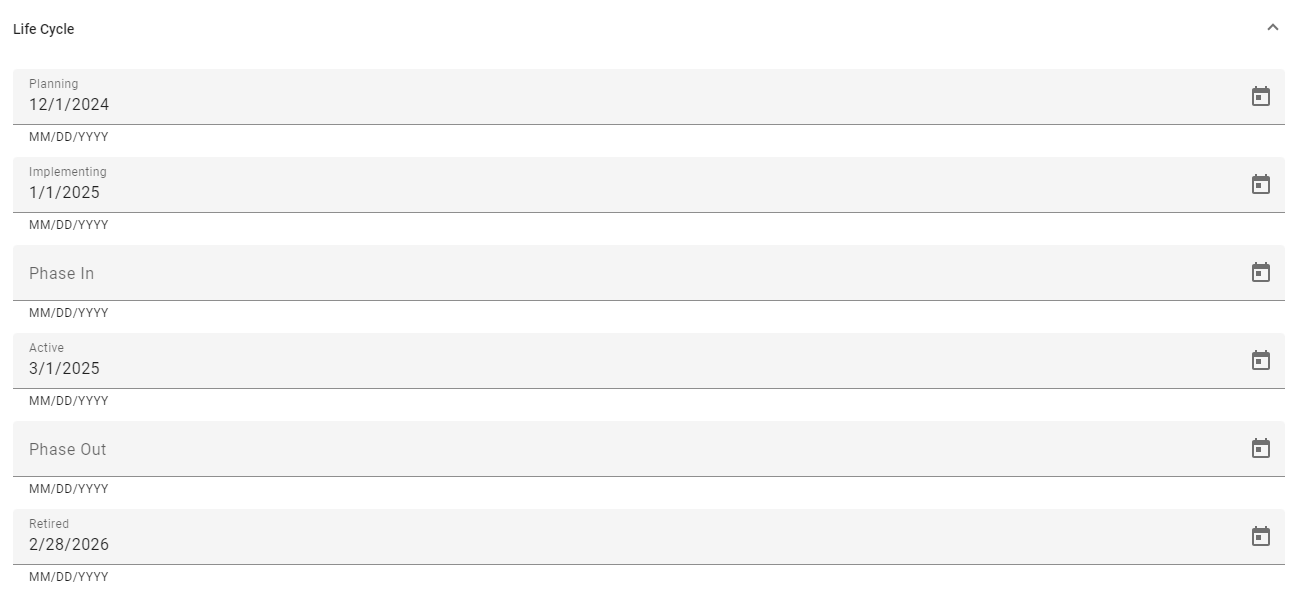
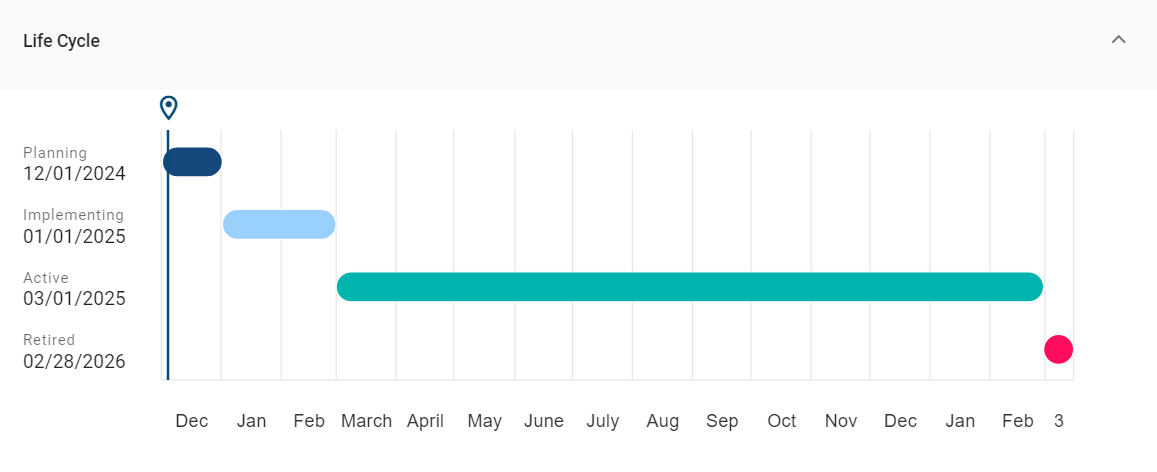
After you define and save the lifecycle, the Life Cycle attribute group is shown as a timeline with the entered dates.

The different colors in the timeline represent the phases of the lifecycle. The current day is highlighted by a marker.
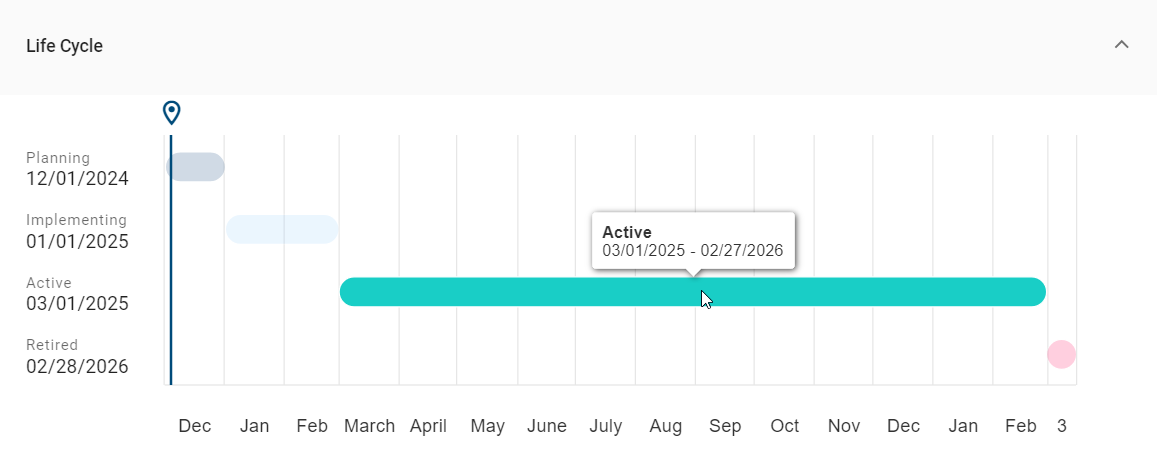
To view more details, expand the Life Cycle attribute group.
On the left side, you see all entered lifecycle dates. On the right side, these are shown as bars. When you hover over a bar, the name and exact dates of the attribute are displayed.
Hint
A separate license is required to use this feature.
Where can I view the Lifecycle Roadmap of catalog items?
Once GBTEC Enterprise Architecture has been purchased and activated, every user can view the Lifecycle Roadmap for filtered catalog items. Open the Catalog menu item in the left menu bar and filter for the “Application” catalog object type in the right sidebar. As soon as a filtered object has data in the attribute group “Life Cycle”, the Lifecycle Roadmap tab appears next to the Dashboard tab.
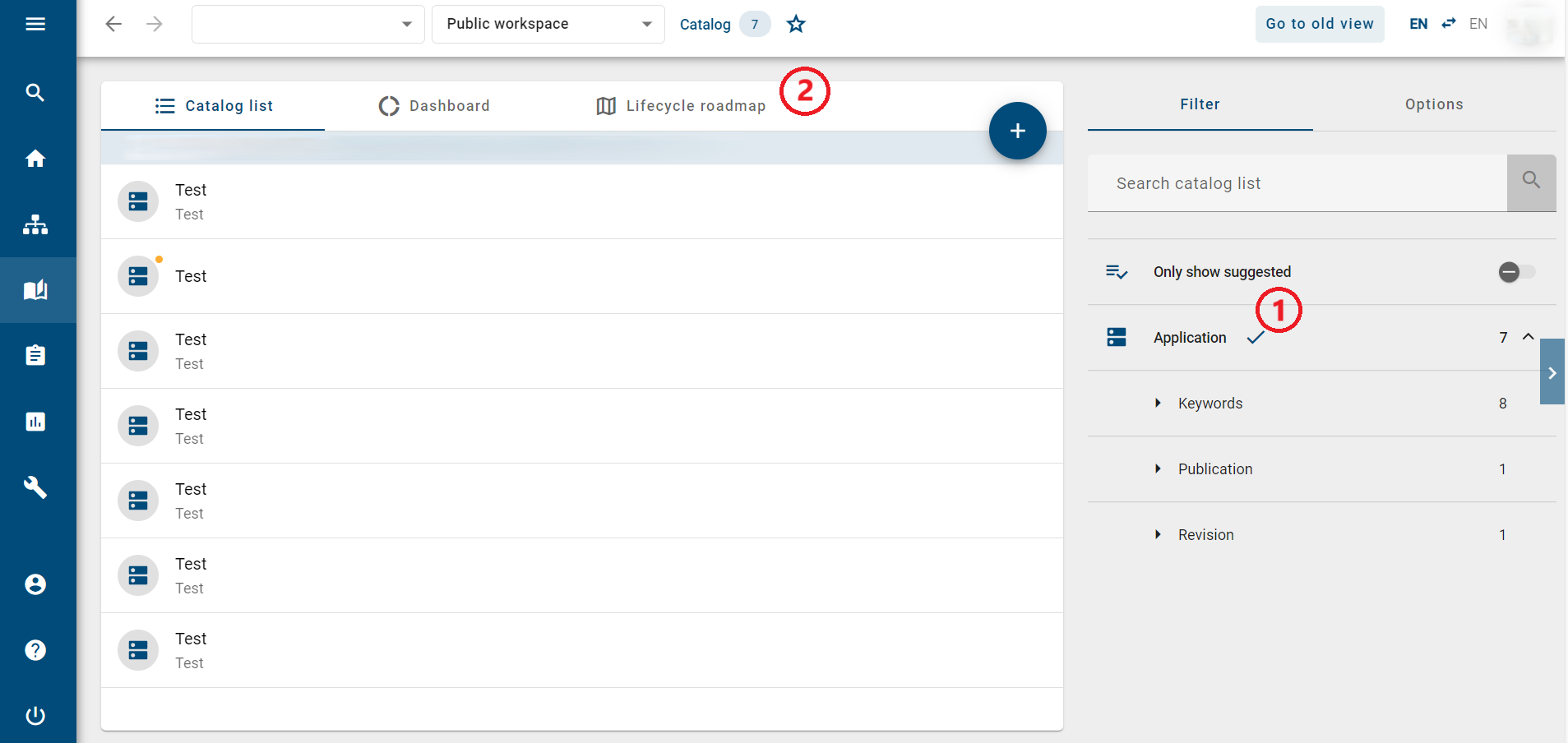
Click the Lifecycle Roadmap tab. The roadmap shows the timelines of all catalog items that match the active filters. The catalog items are sorted alphabetically.
At the top of the roadmap, you can see the years showing the progression of the lifecycle. On the left side, you can sort the catalog items by different criteria. The filtered objects remain visible regardless of the selected sorting.
Below the roadmap, there is a navigator. Use it to move through the roadmap and adjust the view.
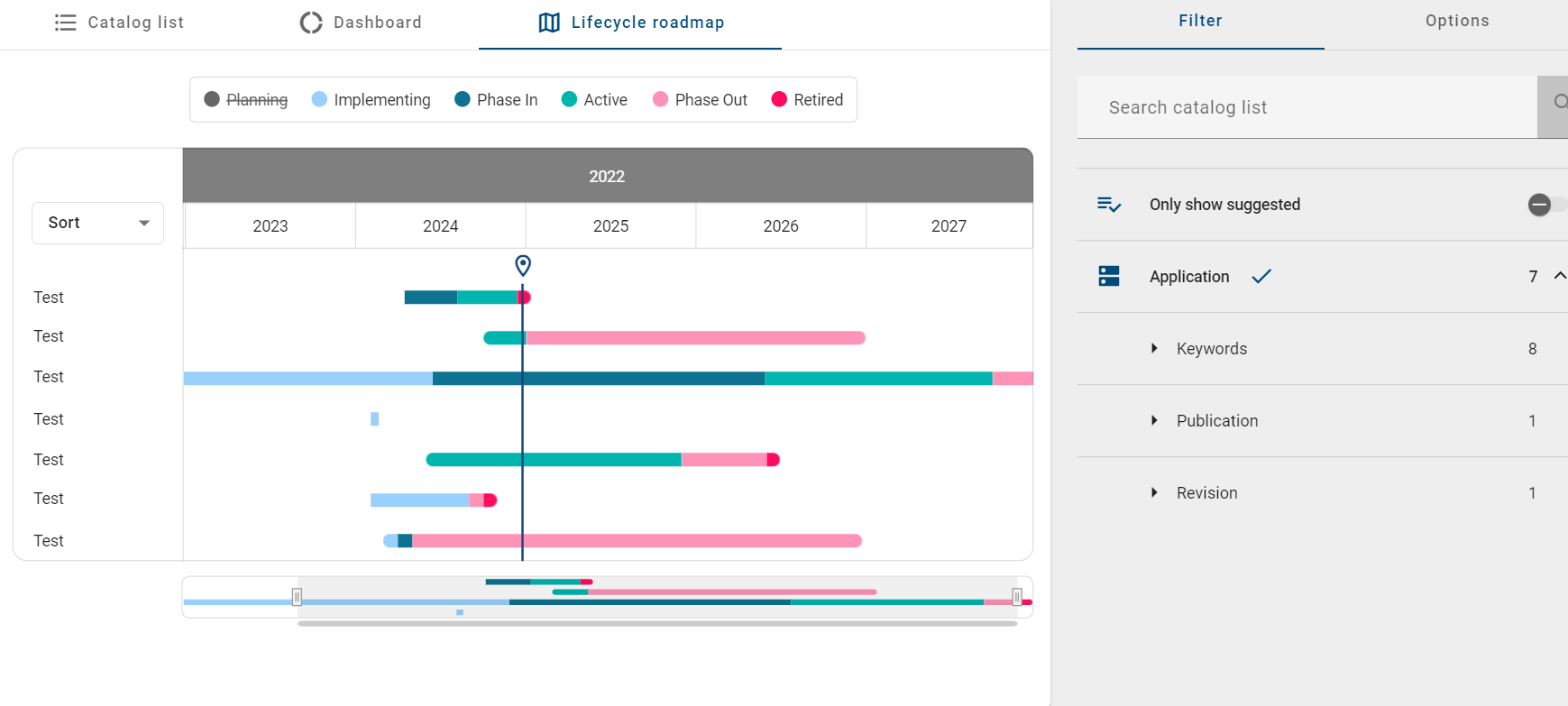
By default, the roadmap shows a time range from -2 years to today and +3 years. When you adjust the view, a period of five years is displayed.
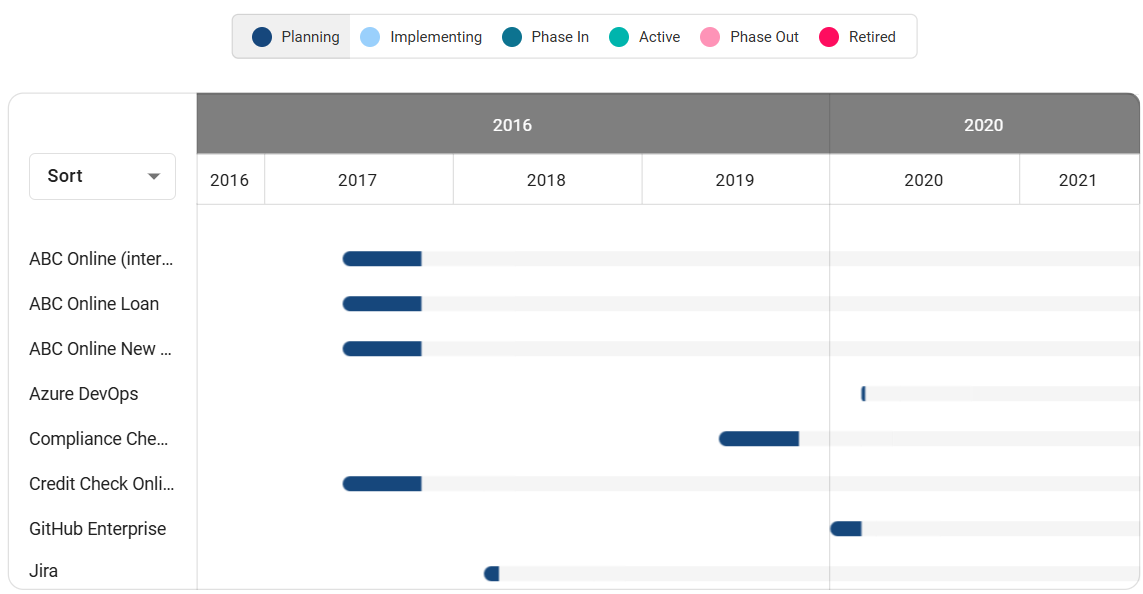
Above the lifecycle roadmap, there is a legend. It explains the colors and their meaning. Each color represents a phase in the lifecycle: Planning, Implementing, Phase In, Active, Phase Out, and Retired. Click a phase to show or hide it in the roadmap. Hidden phases are displayed in gray.
Hint
A separate license is required to use this feature.
Hint
The roadmap is updated when you change the filters. Only catalog items that match the selected filters are shown.
How can I switch directly from the Lifecycle Roadmap in the catalog to an object?
Once GBTEC Enterprise Architecture has been purchased and activated, every user can switch directly from the Lifecycle Roadmap in the catalog to a catalog item. Open the Catalog menu item in the left menu bar and filter for the “Application” catalog object type in the right sidebar. Then switch to the Lifecycle Roadmap tab in the header.
Note
The Lifecycle Roadmap is only displayed if at least one published catalog item with a specified validity period exists in the current repository.
On the left side of the roadmap, you see an alphabetically sorted list of catalog items. The list takes the selected filters into account. Objects for which an access restriction is defined are not displayed.
Click the name of an object in the list to open the object.
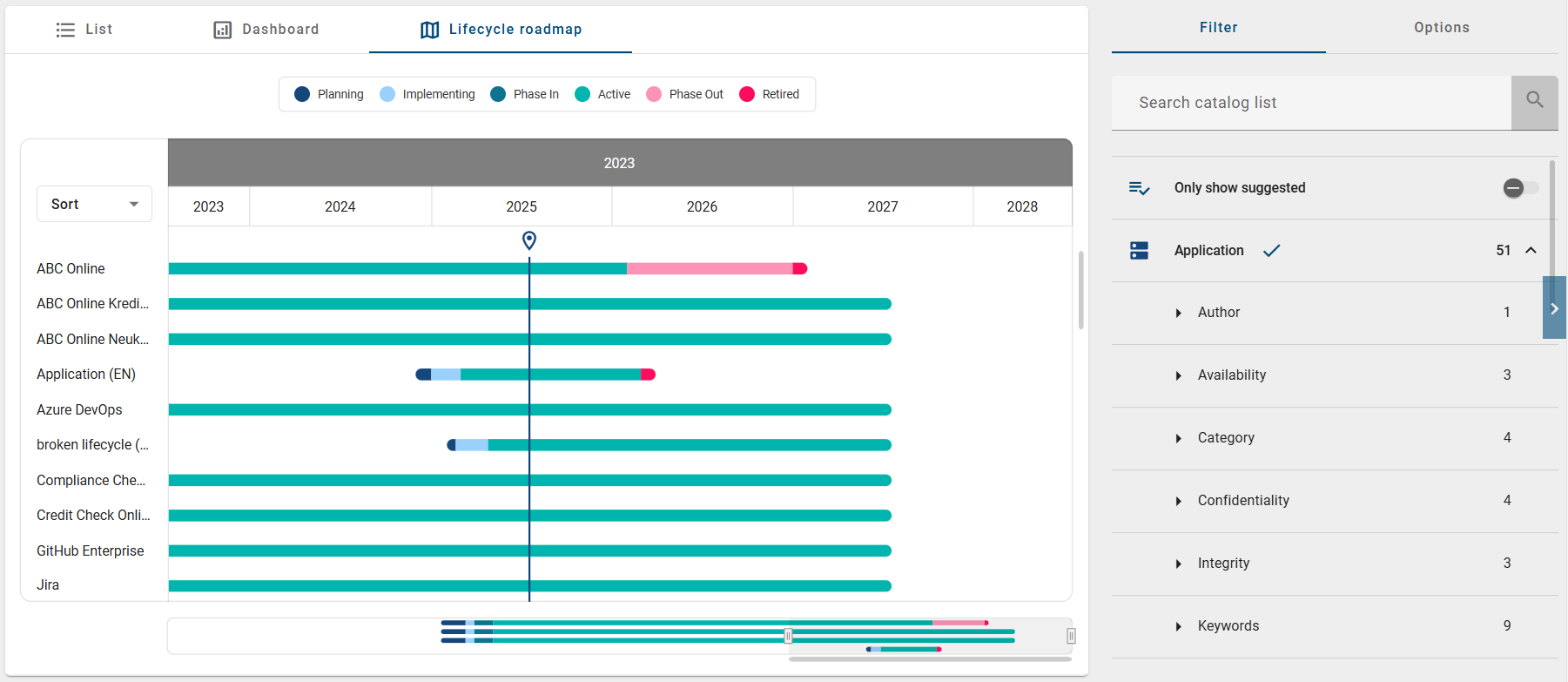
You are taken to the detail view of the catalog item. In the Occurrences panel in the right sidebar, you can see in which diagrams or catalog items the object is used.