Collaboration
Share links
How can I share the link to a diagram with other users?
As an Author, Editor, or Administrator, you can share a link to a diagram in the Public workspace with other users. To do so, click the Diagrams menu item in the left menu bar and switch to the Public workspace stage if necessary. Then, select a diagram from the list. If no diagram exists yet, you must first create one.
Once you have selected a diagram, switch to the Options panel in the right sidebar and click on the Share by email option.
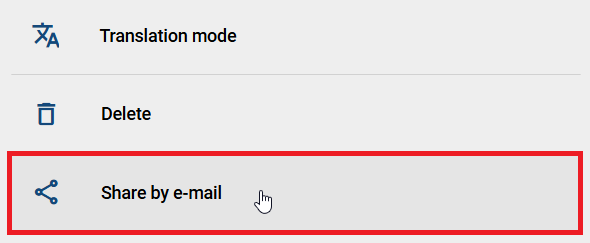
When you click this option, your email program will open and you can write a new email. The subject and body with the link to the diagram in the public workspace will automatically be filled in, which you can customize if you wish. To share the diagram with another user, enter the user’s email address in the “To” email field.
Once you send the email with the link to the diagram, other users will be able to access and work with it. If you share the diagram with users assigned the Reviewer or Reader role who normally do not have access to the public workspace, they will still be able to view the diagram. However, their permissions will be limited to commenting only.
How can I share my search query with other users?
Every user can share the link to a search query with other users. To do so, click on the Search menu item in the left menu bar and enter the desired term in the search field. Start the search by pressing Enter or clicking on the magnifying glass icon. Then, switch to the Options panel in the right sidebar and click on the Share by email option.
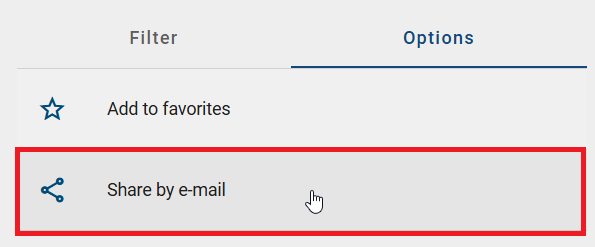
When you click this option, your email program will open, allowing you to write a new email. The subject and body, along with the link to the search query, will be automatically filled in and can be customized if necessary. To share the search query with another user, enter their email address in the “To” email field.
Once you send the email with the link to the search query, other users can access the search query and make additional search adjustments. If you share a search query from a stage (e.g., public workspace) with users who do not have access to that stage, they will be redirected to a page informing them of the access denial.
Comments
How can I comment on a diagram?
The Comments of a diagram are available in the Options for every diagram view.
By clicking on the Comments entry, the comment bar opens on the right-hand side. In the comment bar you can now see comments on the diagram on top - if already submitted. If comments on objects of the diagram exist, they are grouped below.
Click on the Comment to diagram field to write a new comment. Once confirmed by clicking the Add comment button, your comment will appear in the comment bar. Each comment is displayed with the submission date and the commentator’s initials as a chip.
Alternatively, you can also add a comment to the diagram via the context menu. This appears by a right-click in a free space of the diagram.
Select the Add comment entry to write a comment in the dialog window that opens, and confirm it by clicking Add.
Some users receive an email notification of the new comment. This is described for each stage in the following:
Public Workspace: A notification is sent to the Author and to users involved in the conversation.
Preview: A notification is sent to the Reviewer and to users involved in the conversation.
Publication: A notification is sent to the user or user group mentioned in the attribute Responsible and to users involved in the conversation.
Note
Please note that you do not receive notifications about your own comments.
Note
Comments depend on the stage. This is caused by different work states and versions in each stage. For example, users in the publication cannot see comments from the public workspace. However, for allocation diagrams, comments are always visible, regardless of whether you are in the allocation diagram itself or in the parent diagram.
Note
Please note that the comment function is available for both checked-in and checked-out diagrams.
You can edit or delete a comment by a click on the desired entry in the context menu of your comment.
Warning
Deleting comments is done immediately when you select the function. You will not be asked for confirmation again.
Note
Administrators and Editors are able to edit or delete all comments. All other user roles can use these features only for their own comments.
Warning
Please note that no notifications are sent when existing comments are changed or deleted.
How can I comment on an object?
Objects can be commented on independently in each version of a diagram. These comments are specific to the diagram version and are not carried over to other diagrams.
Right-click on the object you want to comment on and select Add comment from the context menu.
A dialog window opens. Here you can Add a comment in the equivalent field and confirm by clicking the Add button.
If you do not want to submit the comment, cancel the process with a click on the equivalent button or outside the dialog window. Alternatively, you can use the ESC key.
After you confirm the process, your comment becomes visible in the comment bar for all users who have access to the stage. You can view the comment bar by selecting the Comments entry in the options. If comments have been submitted for an object, the object’s name will appear in the bar, and you can view all of its comments by clicking on the name.
In case an object has already been commented, you can alternatively Enter a comment in the corresponding field. Confirm the input by a click on Add comment.
Some users receive an email notification of the new comment. This is described for each stage in the following:
Public Workspace: A notification is sent to the Author of the diagram and to users involved in the conversation.
Preview: A notification is sent to the Reviewer of the diagram and to users involved in the conversation.
Publication: A notification is sent to the user or user group mentioned in the attribute Responsible of the diagram and to users involved in the conversation.
Note
Please note that you do not receive notifications about your own comments.
Note
Comments depend on the stage. This is caused by different work states and versions in each stage. For example, users in the publication cannot see comments from the public workspace.
Each user can edit and delete their own comments. Administrators can also make these changes to all existing comments.
Open the comments through the options. Navigate to the comment you want to edit or delete by clicking on the list entry for the corresponding object.
In the context menu you have the option to Edit or Delete the comment.
The editing needs to be saved to apply the changes.
Warning
The deletion of comments is executed right after you click this option in the context menu. You will not be asked for further confirmation.
Warning
Please note that no notifications are sent when existing comments are changed or deleted.
How can I delete all comments of a diagram at once?
As a user with the Administrator user role, you can delete all comments of a diagram at once. This removes all comments that are displayed in the currently opened diagram.
Open the Diagrams menu item in the left menu bar and select the diagram whose comments you want to delete. Then switch to the Options panel in the right sidebar and open the Comments option.
The comment area of the diagram is displayed. The Delete all comments button is located in the upper right corner of the comment area. If at least one comment exists in the diagram, the Delete all comments button is available. This applies both to comments on the diagram itself and to comments on individual diagram objects. If no comments exist, the button is disabled.
Click the Delete all comments button to delete all comments of the diagram. A dialog then opens. You can either cancel the action by clicking the Cancel button or confirm it by clicking the Delete button.
If you click the Delete button, all comments that are displayed in the currently opened diagram are removed. The comment area is then empty. The input field for creating new comments remains available.
If you click the Cancel button, the dialog is closed and no comments are deleted.
Note
Please note that deleting the comments cannot be undone.