Chatbot
Arty is the name of our AI-based assistant, with which you can interact through the chatbot and which specializes in real-time consulting. Within the chatbot, you can ask Arty your questions and receive an automated response in no time. For example, you can get assistance with using features in GBTEC Process Design or ask questions about your published processes.

You will find the Arty button at the top right of the top menu. It is accessible from every area of the application. Regardless of which menu item or stage you are currently working in, you can use this button at any time to open a chat with Arty.

Hint
Please note that a separate license is required to use this feature. Also, please refer to the guidelines for using the AI features.
How can I open a chat with Arty?
Any user can start a chat with Arty. To do so, click the Arty button at the top right of the top menu.
The Arty chat panel then opens on the right side of the screen. The rest of the screen content remains visible and unchanged. To close the chat panel again, click the Close Arty icon at the top right of the chat panel, or click the Arty button in the top menu again.

If you switch to another area of the application while a conversation is open, the chat panel remains open. Your current conversation, the selected knowledge base, and any unsent text in the input field are also retained.
If Arty answers while the chat panel is closed, you will briefly be notified at the bottom right of the screen. Click the Open Arty button in the notification to open the chat panel.

How does the chat with Arty work?
Any user can open a chat with Arty. When you open the chat panel using the Arty button at the top right of the top menu, you will be greeted by Arty in your browser’s language. Below the greeting, you will find a dropdown menu with two knowledge bases that help you get more specific answers. These are as follows:
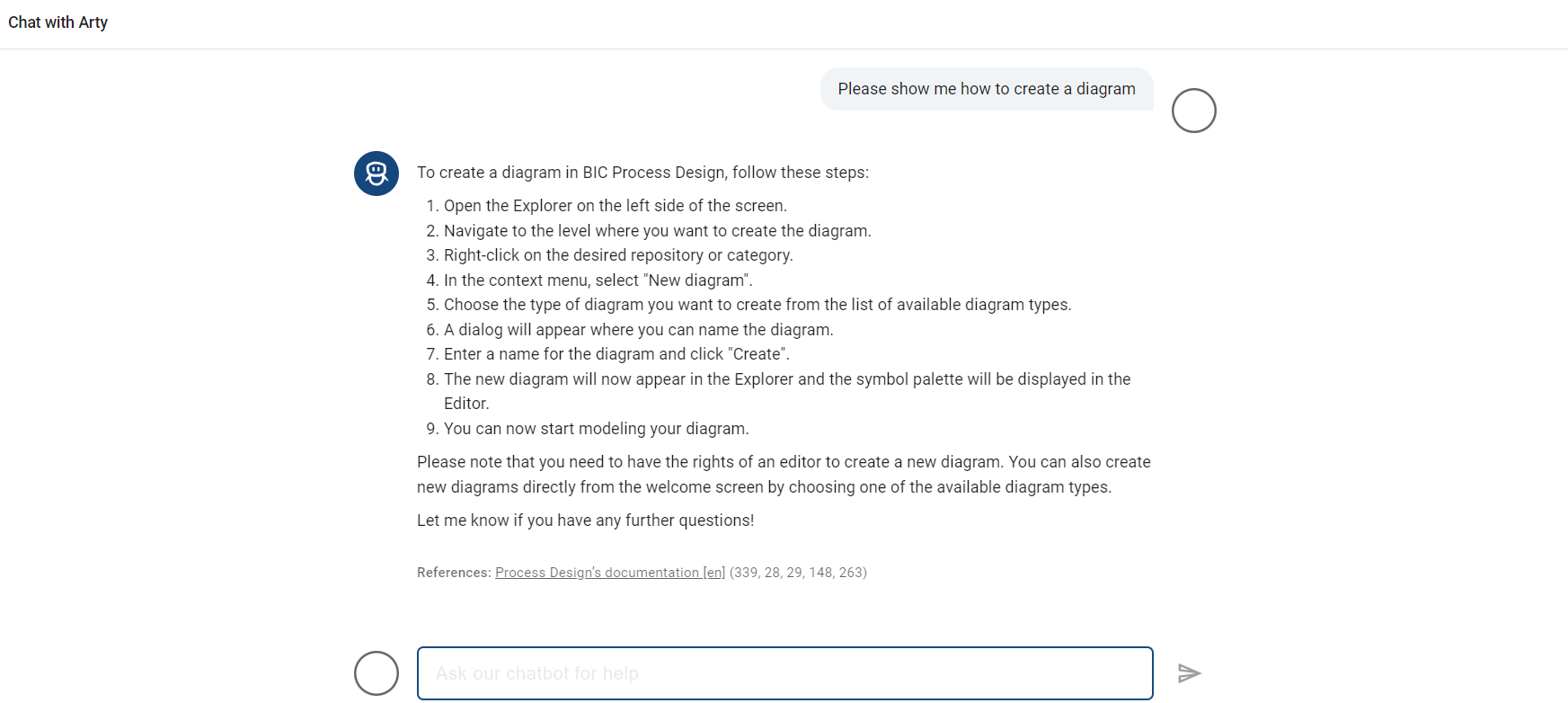
Learn about the product: Select this knowledge base to ask questions about the features of GBTEC Process Design. The online documentation is used as the data source, and is also referenced as a hyperlink when you receive an answer from Arty.
Explore processes: Select this knowledge base to ask questions about published processes. Only the modeled data from the Publication stage is used, and the processes used are linked in the answer. If you click on a linked process, you are taken to the corresponding diagram in the Publication stage.
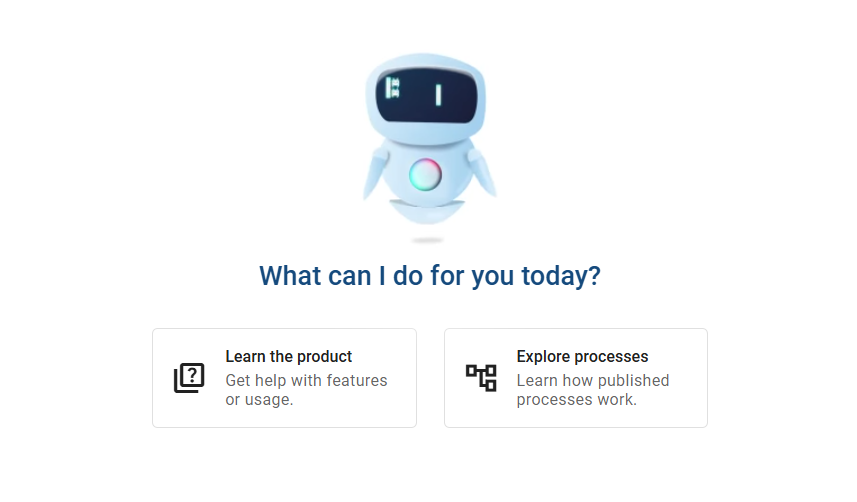
After selecting a knowledge base, enter your question in the input field. Once you have entered at least one character in the input field, the send option becomes active. Send your question to Arty by clicking the Send message button to the right of the input field, or by pressing the Enter key. Within a few moments, you will receive an answer to your question.
Hint
Please note that the input field is limited to 1024 characters. A counter at the bottom right of the input field shows how many characters you have already entered. Once the limit is reached, no further characters are accepted.
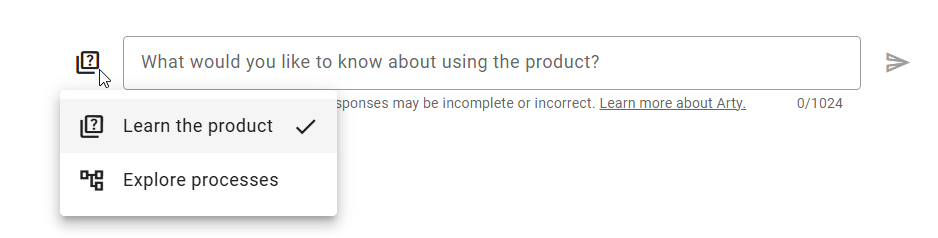
If you want to ask a question using a different knowledge base afterwards, click the icon at the top left again. It shows the currently selected knowledge base. Then select the knowledge base you want. Any text you have already entered but not yet sent in the input field is retained.
Hint
Please note that a new conversation starts after switching the knowledge base. Your previous chat history is no longer taken into account for new answers.
Click the help icon at the top to learn more about Arty. The documentation with notes on how to use Arty then opens in a new tab. Below the input field, you will also find a note about handling AI-generated answers, which links to the corresponding guidelines for using the AI feature.
How is the right knowledge base preselected for me?
Any user can start a chat with Arty. To do so, click the Arty button at the top right of the top menu. So you can start asking your question right away, the application automatically selects a suitable knowledge base for you the first time you open Arty in your session. This applies as long as you have not switched the knowledge base yourself and no conversation exists yet. This is based on the area you are currently in.
If you are in the Search, Diagrams, Catalog, or Insights menu item, the application selects the Explore processes knowledge base. Arty then only considers the repository and stage you are currently in. If you in a different area of the application, the application selects the Learn about the product knowledge base instead. This knowledge base is not limited to a specific repository or stage.
Below the greeting, you will see a brief note indicating which knowledge base was automatically selected for you.

Once you have sent a message or switched the knowledge base yourself, the application no longer automatically selects a new knowledge base for the rest of your session. This also applies if you then switch to another area. However, this does not apply if you open and close Arty without sending a message. In that case, the application automatically selects the appropriate knowledge base for your current area again each time you open it.
If you are in the Preview or Public Workspace stage and the Explore processes knowledge base is selected, you will also see an additional note. It indicates that your answers are based on published processes. This note cannot be closed.

Which process context can Arty use?
Any user can start a chat with Arty that takes a process context into account. To do so, click the Arty button at the top right of the top menu. For Arty to be able to use a process context, the Explore processes knowledge base must be selected at the top right beforehand. When you use this knowledge base, Arty automatically tries to use the most suitable context for your current view.
If you are in the diagram view of a diagram in the Publication stage, Arty uses exactly that diagram as the context. You can recognize this by a marker above the input field. It shows the diagram type and the name of the diagram. Your answers then relate exclusively to this one diagram.

If you are not in the diagram view of a diagram in the Publication stage, Arty instead uses all published processes as the context. This applies, for example, to the Public Workspace and Preview stages, or a diagram that is currently checked out for editing. In this case, you will see the note that your answers are based on published processes.
To use all published processes as the context again, click the remove icon on the diagram’s marker. Arty then uses all published processes as the context again. If you are still in the same diagram view, you can restore the diagram context at any time using the Use current view as context option.

The selected context remains in place as long as you navigate within the diagram, open and close the chat, or open a reference from an answer and return. However, it is re-evaluated as soon as you start a new conversation, switch the knowledge base, or leave the Publication stage.
How can I use the diagram list as context for Arty?
Every user can start a chat with Arty that takes the currently displayed diagram list into account as context. To do this, click the Arty button in the top right of the header bar. For Arty to use the diagram list as context, the knowledge base Explore processes must be selected in the top right. You must also be on the diagram list in the Publication stage.
While you are on the diagram list, Arty automatically uses all diagrams displayed there as context. Your answers then relate exclusively to these diagrams. This applies regardless of whether the list is unfiltered or whether you have applied filters beforehand. If the selected category itself contains no diagrams of its own, the list instead displays diagrams from subcategories. Arty then likewise uses exactly these displayed diagrams as context.
You can recognize the active diagram list context by a marker above the input field. It shows a diagram list icon along with the number of diagrams used.

Hint
Please note that the diagram list context updates automatically as soon as you change the displayed view. This applies, for example, to a change of category, filter, diagram, or area. As a result, your answers are always based on the currently displayed content.
If the diagram list contains no diagrams, Arty instead uses all published processes as context. In this case, no marker is displayed, and you see the notice that your answers are based on published processes.
To remove the diagram list context, click the remove icon on the marker.

Arty then uses all published processes as context again. As long as you remain on the same diagram list, you can restore the diagram list context at any time via the Use current view as context option.

Is the chat history saved during the session?
Any user can start a new chat with Arty. To do so, click the Arty button at the top right of the top menu. Once you have started a conversation, the chat history is retained during the active session and extended with each new message. Your inputs are taken into account, allowing Arty to refer to previous messages in context and create a coherent dialog.
You can start a new conversation using the Start a new chat button at the top right, or by switching the knowledge base.

The previous chat history is then moved to a separate area for previous chats. It remains visible there, but is no longer taken into account as context for the new conversation. A note draws your attention to this.

As long as the session is active, both your current conversation and all previous chats remain intact. This also applies if you close and reopen the chat panel in the meantime, or if you leave the application and return later. Any unsent text in the input field is also retained in this case. Once the session ends, the chat history and any unsent text are deleted. The next time you open Arty, you will start again with the original welcome screen.
Tip
It can be helpful to start a new chat when asking questions about a new topic. This means earlier content is no longer taken into account as context, and your answers can become clearer and more precise.
Hint
The knowledge base you are currently in is shown in the chat input field.
How can I open references in a chat with Arty?
Any user can start a chat with Arty whose answers may also contain references. To do so, click the Arty button at the top right of the top menu.
If an answer from Arty contains references, a section is displayed below the answer. This section is always open and shows all available references.
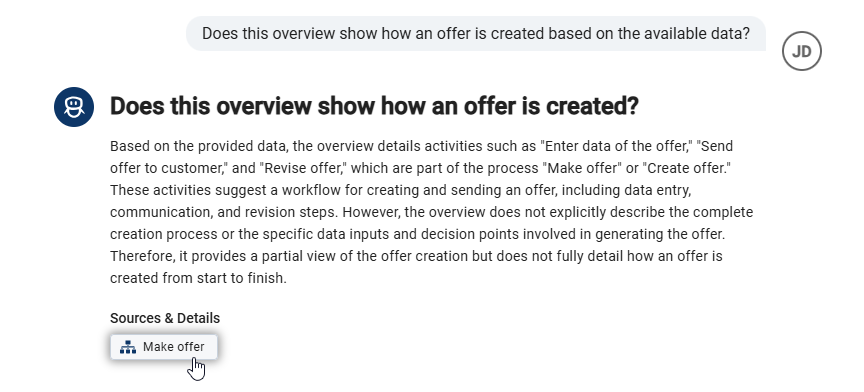
A reference can be, for example, a diagram, an object, or a search result. Each reference shows a matching icon and a name, for example the diagram or object name. This name is always shown in your current content language, even if you asked your question in a different language. Diagrams are sorted alphabetically, while objects appear in the order in which they were created in the system.
Click a reference to open the content in the same browser tab. The chat panel remains open on the right side of the screen. If you navigate back afterwards, the previous view is restored and your chat history remains unchanged.
Hint
If no references are available, the reference section is not displayed.
How do you use Arty effectively?
To help Arty provide relevant and precise answers, your questions should be clear and include the necessary context. Describe as precisely as possible what you are asking about. This makes it easier for Arty to find the right answer.
When you start a new topic or refer to a specific process, diagram, or object, include this reference directly in your question. This helps avoid misunderstandings and leads to more accurate answers.
Tip
If you ask questions about a new topic, starting a new chat can be helpful. This keeps the context clear and allows Arty to answer your request more precisely.
How should I model my processes for Arty?
To help Arty evaluate processes reliably, your models should be clear and well-structured. Make sure that processes, objects, and attributes have clear and meaningful names.
Why are clear names important?
Arty uses the names of processes, activities, roles, risks, and other objects to understand your request correctly. Avoid general or ambiguous names. If custom attributes have been created by an administrator, these should also have clear names. Unclear attribute names can make it difficult for Arty to recognize their meaning reliably.
Why should objects not contain too much information?
If a single object contains a large amount of information or many attributes, this can reduce the quality of the answers. This is especially the case when an object contains many linked files or additional information. Distribute information across the appropriate objects and attributes as clearly as possible.
Why should processes remain easy to understand?
Very large processes can make it harder for Arty to consider all relevant information. This applies, for example, to processes with many activities or many linked files. Keep large processes as clear as possible and use meaningful names for the individual process elements.
Which diagram types can Arty evaluate most reliably?
Arty evaluates certain diagram types particularly reliably. These include BPMN diagrams, value chain diagrams, application context diagrams, and business capability context diagrams and maps. Arty can also answer questions about other diagram types, but the quality of the answers may vary as these diagram types are evaluated in a more general way.
How should I phrase questions for Arty?
Phrase your questions as clearly and completely as possible. Name the process, diagram, object, or location your question refers to. The more specific your question is, the more reliably Arty can find the right information. The following tips will help you phrase your questions more effectively:
Why should I provide complete context?
If you ask about a specific process, include the process directly in your question. A question such as “When does the Hiring process at the Berlin location expire?” is more specific than “When does the process expire?”. In the second example, it is unclear which process is meant.
If your question refers to a specific location, diagram, or object, include this information directly in your question as well. This helps Arty assign your request correctly.
Why should I ask one question at a time?
If possible, ask multiple questions one at a time. This helps Arty answer each question more precisely and find the relevant information more reliably.
For example, first ask: “Who is responsible for the Hiring process?” and then ask: “Which activities does the Hiring process contain?”. A combined question such as “Who is responsible for the Hiring process and which activities does it contain?” is less suitable.
Which terms should I use?
Use precise and clear terms. This helps Arty understand your request more accurately. Terms such as production process or credit institution are more specific than general terms such as process or bank.
If a term can have different meanings depending on the context, briefly explain what you mean. This helps Arty interpret your question correctly.
Why should I ask questions instead of using statements?
Questions usually lead to better results than short statements or incomplete descriptions. A question such as “Which risks are assigned to the Create Offer process?” is more specific than a statement such as “Risks of Create Offer.”.
Tip
When you refer to a specific process, explicitly use the word process in your question. For example, ask “Which risks does the Create Offer process have?” instead of “Which risks does Create Offer have?”. This helps Arty identify the correct reference more reliably.
Which information can Arty evaluate?
Arty can evaluate information most reliably when it is stored directly in the diagram. This includes, for example:
roles, risks, or applications assigned to processes or objects
files or links stored as attributes
other information stored directly on processes, objects, or attributes
If your question refers to a specific process, diagram, or object, include this reference directly in your question. This helps Arty identify which information is relevant for the answer.
If information from files or links is relevant to your question, include it directly in your question whenever possible. This helps Arty consider the necessary context.
Information about the order of activities, events, or gateways can be interpreted differently depending on the model and the question. Phrase your questions as specifically as possible and explicitly name the relevant process so that Arty can clearly assign your request.