Variant management
A variant is a direct copy of an original diagram or an original catalog object. You can edit this copy as needed. The variant is created in the maintained content languages of the original diagram or the original catalog object. This is helpful, for example, if a process is generally used in the company but needs to be adapted in individual countries.
Diagrams
How can I create a diagram variant?
Users with the Administrator, Editor, or Author user role can create variants of checked-in diagrams in the Public workspace stage.
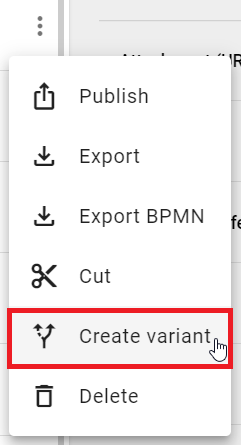
When you open the Diagrams menu item in the left menu bar, all diagrams available in the current repository are shown in the main area. To create a variant of a diagram, open the context menu of the diagram you want and select the Create variant option.
A dialog opens. There, you can change the name of the diagram if needed. By default, the name of the original diagram is shown in the input field.
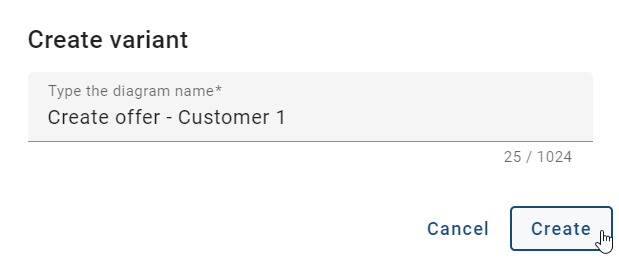
Then click the Create button to create the variant. If you want to cancel the process, click the Cancel button. After the variant is created, the diagram is shown as the top entry in the diagram list. If you want to see an alphabetically sorted list, refresh the page.
After creating the variant, click this diagram in the list. The Details panel then opens in the right sidebar. There, you will see the Variant origin attribute. This attribute refers to the original diagram from which the variant was created.
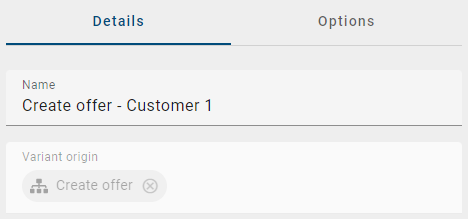
When a variant is created, you are automatically entered as the author in the governance attribute. This depends on whether you or one of your user groups is entered as the author in the original diagram. You can then check out the variant and edit it. This also applies if you are not yet stored as a person object in the catalog. In this case, the system automatically creates an accepted person object as a catalog item.
Note
You can also create variants of variants.
How can I compare diagram variants?
Users with the Administrator, Editor, or Author user role can compare variants in the Public workspace stage. You can compare the original diagram with a variant, and you can also compare one variant with another variant.
When you open the Diagrams menu item in the left menu bar, all diagrams available in the current repository are shown in the main area. Select the diagram you want. Then switch to the Options panel in the right sidebar of the checked-in or checked-out diagram and open the Variants option.
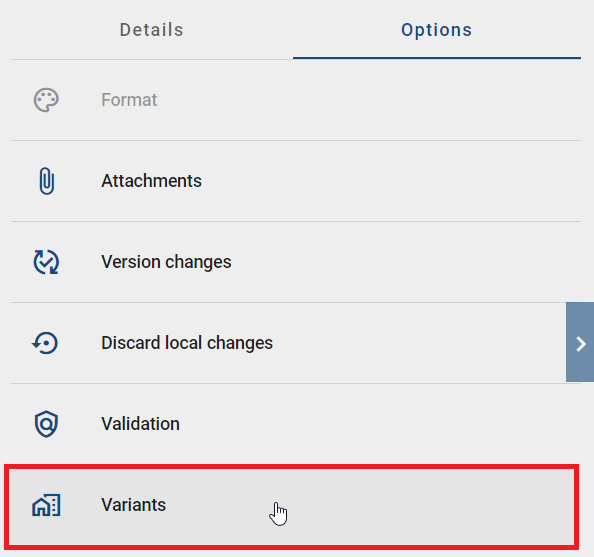
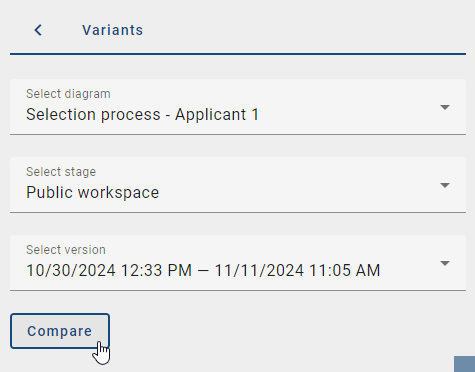
When you open the Variants option, the current stage, a diagram variant, and the matching version are already selected automatically. The selected variant follows alphabetical order. You can change this selection if needed. The differences between the two diagrams are then shown automatically.
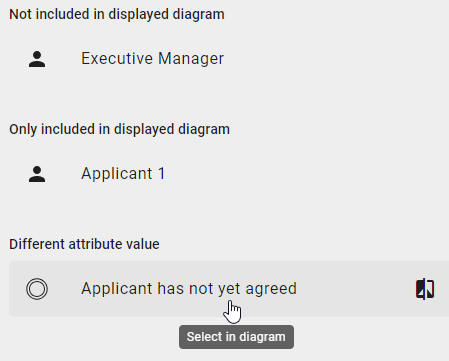
If the displayed diagram contains at least one object that is different from the diagram variant, the object is shown in one of the following sections:
Not included in displayed diagram: The object is not included in the displayed diagram.
Only included in displayed diagram: The object is included only in the displayed diagram.
Different attribute value: The object has different attribute values in the displayed diagram.
The list shows the object names in your content language. If there are differences in other languages, an information banner is shown below the selected version. This banner lists the affected languages as language codes, for example DE, PL, ES, FR, IT. To see the differences in one of these languages, you must change your content language to that language.
How can I highlight the differences between the diagram variants in color?
Users with the Administrator, Editor, or Author user role can highlight differences between diagram variants in color.
When you open the Diagrams menu item in the left menu bar, all diagrams available in the current repository are shown in the main area. Select the diagram you want. Then switch to the Options panel in the right sidebar of the checked-in or checked-out diagram and open the Variants option.
When you open the Variants option, the current stage, a diagram variant, and the matching version are already selected automatically. The differences are then shown in a list. You can change the selection if needed.
To highlight a difference in color, click the relevant object in the list.
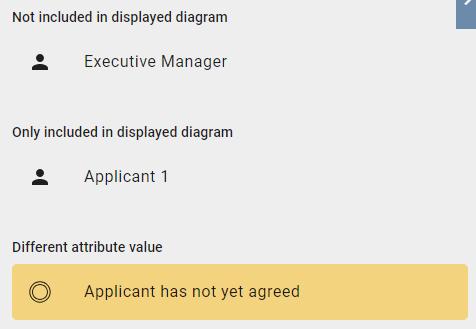
After you click an object in the list, the object is highlighted in both the list and the displayed diagram. The colors have the following meanings:
A green highlight means Only included in displayed diagram.
A yellow highlight means Different attribute values.
Hint
Objects that are not included in the displayed diagram cannot be highlighted in color in the diagram. These objects are shown only in the Not included in displayed diagram section.
If only objects were rearranged between the displayed diagram and the diagram variant, if the diagram name was changed, or if there are no changes, you will see a message saying that no changes were found.
How can I add or remove objects when comparing diagram variants?
Users with the Administrator, Editor, or Author user role can add or remove objects while comparing a diagram variant with the displayed diagram.
When you open the Diagrams menu item in the left menu bar, all diagrams available in the current repository are shown in the main area. Select the diagram you want to compare. Then switch to the Options panel in the right sidebar of the checked-in or checked-out diagram and open the Variants option. Make sure that the displayed diagram is checked out.
When you open the Variants option, the current stage, a diagram variant, and the matching version are already selected automatically. The differences are then shown directly. You can change the selection if needed.
When you move the mouse pointer over the Not included in displayed diagram section, the Add to diagram button appears. This lets you add the object to the diagram that exists in the diagram variant but not in the displayed diagram.
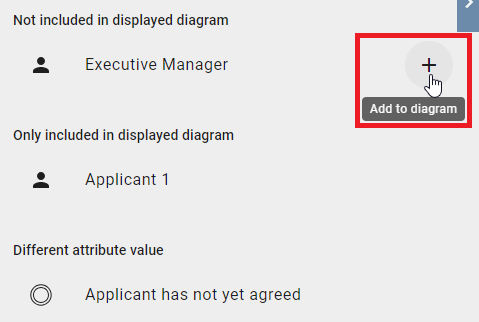
When you move the mouse pointer over the Only included in displayed diagram section, the Remove from diagram button appears. This lets you remove the object from the diagram that exists only in the displayed diagram but not in the diagram variant.
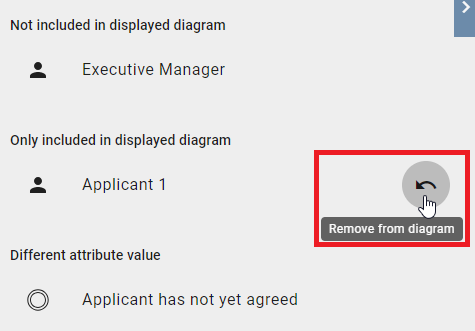
Clicking the button runs the action immediately, and the change will no longer appear in the comparison. You can only undo the action by discarding the local changes or by clicking the Undo button in the editor, or using CTRL+Z.
Where can I see and apply changes to attribute values between diagram variants?
Users with the Administrator, Editor, or Author user role can view and apply changes to attribute values between diagram variants while comparing a diagram variant with the displayed diagram.
When you open the Diagrams menu item in the left menu bar, all diagrams available in the current repository are shown in the main area. Select the diagram you want to compare. Then switch to the Options panel in the right sidebar of the checked-in or checked-out diagram and open the Variants option.
When you open the Variants option, the current stage, a diagram variant, and the matching version are already selected automatically. The differences are then shown directly. You can change the selection if needed.
To view the changed attribute values of an object in the displayed diagram, move the mouse pointer over the Different attribute values section. The Show changes button then appears. Click this button.
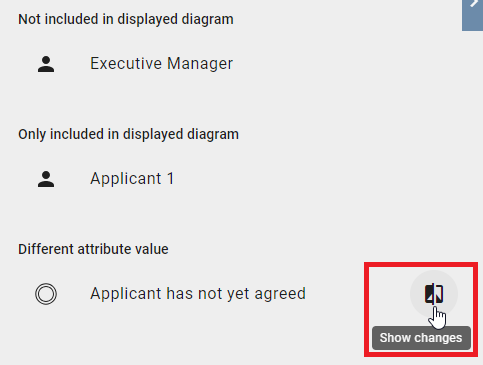
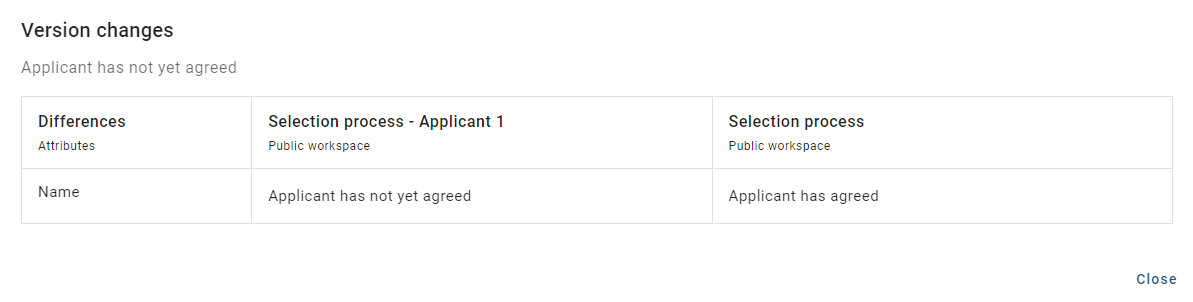
A table then opens. This table shows the changes of the selected object. The left column shows the changed attributes. The middle and right columns let you compare the differences between the displayed diagram (middle column) and the diagram variant (right column) in detail. To close the table, click the Close button.
Hint
Please note that when comparing the current diagram with a selected diagram variant, the system attributes are also shown if they have been changed.
If you clicked the Show changes button in the checked-out diagram, you will also see the Update option in the table. You can use this option to apply the attribute value of the diagram variant to the displayed diagram. Then click the Confirm button to complete the change.
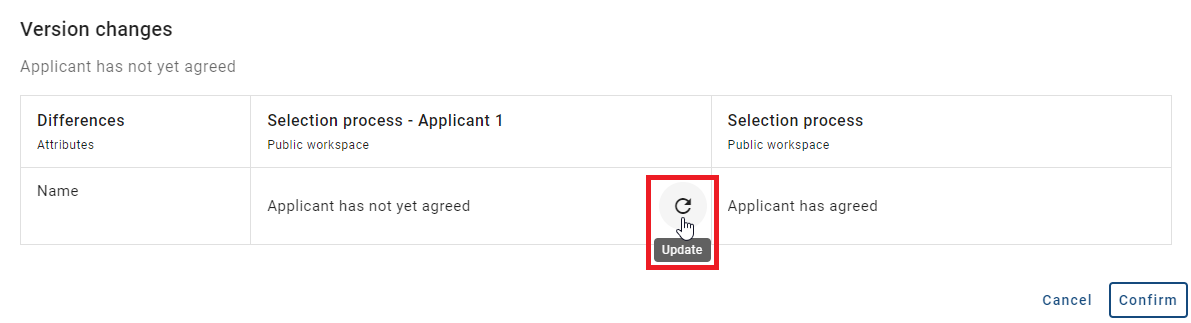
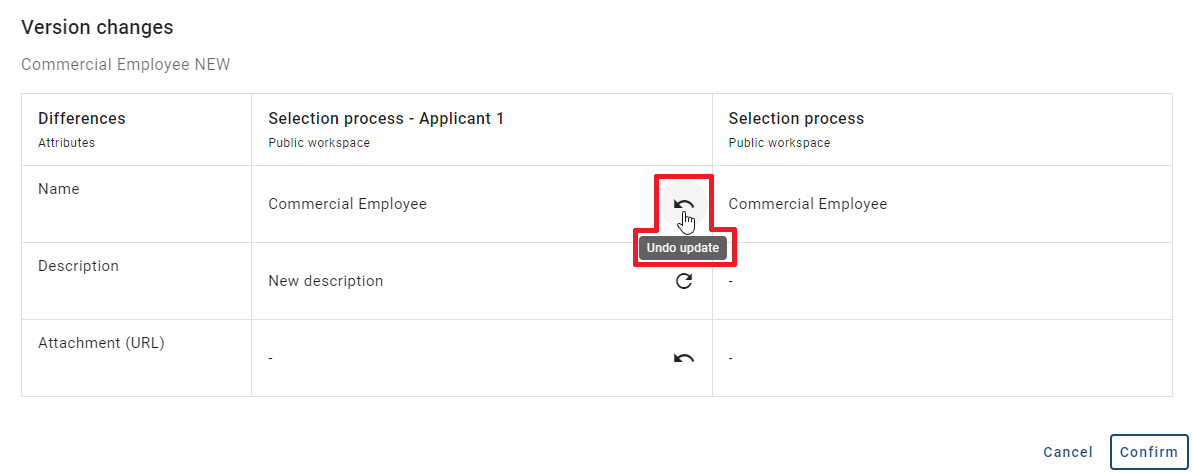
If you clicked the Update button for the wrong attribute value, you can undo this by clicking the Undo update button. To discard all changes, click the Cancel button.
Catalog
How can I create a catalog variant?
Users with the Administrator, Editor, or Author user role can create variants of catalog objects in the Public workspace stage.
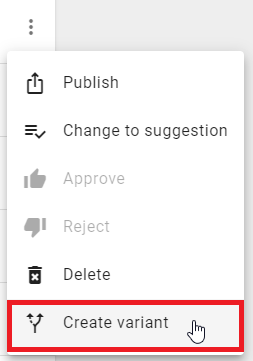
When you open the Catalog menu item in the left menu bar, all available catalog objects are shown in the main area. To create a variant of a catalog object, open the context menu of the catalog object you want and click the Create variant option.
A dialog opens. There, you can change the name of the catalog object if needed. By default, the name of the original catalog object is shown in the input field in the active content language.
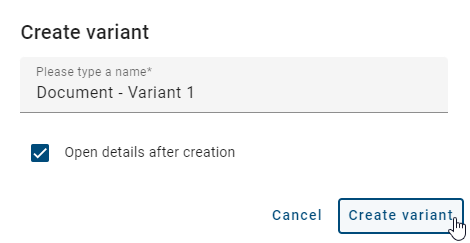
Then click the Create variant button to create the variant. If you want to cancel the process, click the Cancel button. After the variant is created, the catalog object is shown as the top entry in the catalog if the option Open details after creation is disabled. If you want to see an alphabetically sorted list, refresh the page.
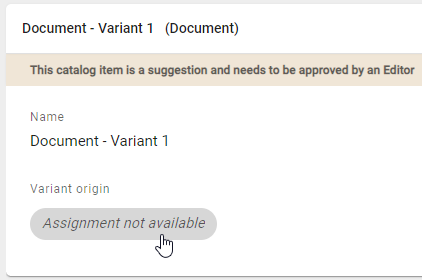
After creating the variant, open the catalog object. In the Details panel, you will then see the Variant origin attribute. This attribute refers to the original catalog object from which the variant was created.
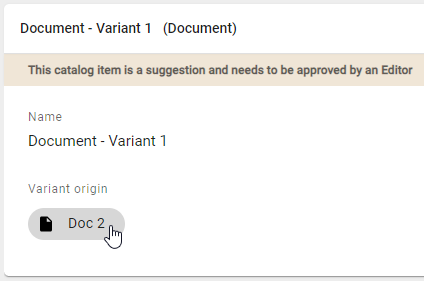
When a variant is created, you are automatically entered as the author in the governance attribute. This depends on whether you or one of your user groups is entered as the author in the original catalog object. You can then edit the variant. This also applies if you are not yet stored as a person object in the catalog. In this case, the system automatically creates an accepted person object as a catalog object.
Note
You can also create variants of variants.
Hint
Please note that catalog variants and original catalog objects cannot be rejected if they are catalog suggestions. However, they can be changed from an accepted catalog object back to a catalog suggestion.
What happens if the original catalog object is deleted?
When you delete an original catalog object, another dialog appears and asks you to confirm the deletion.
After you confirm the deletion, the original catalog object no longer exists in the catalog and can no longer be shown in the catalog variants. However, the catalog variants still show that the object is a variant.
How can I compare catalog variants?
Users with the Administrator, Editor, or Author user role can compare variants of catalog objects in the Public workspace stage. For catalog objects that have a catalog variant or are themselves a variant, all related catalog variants can be compared across stages.
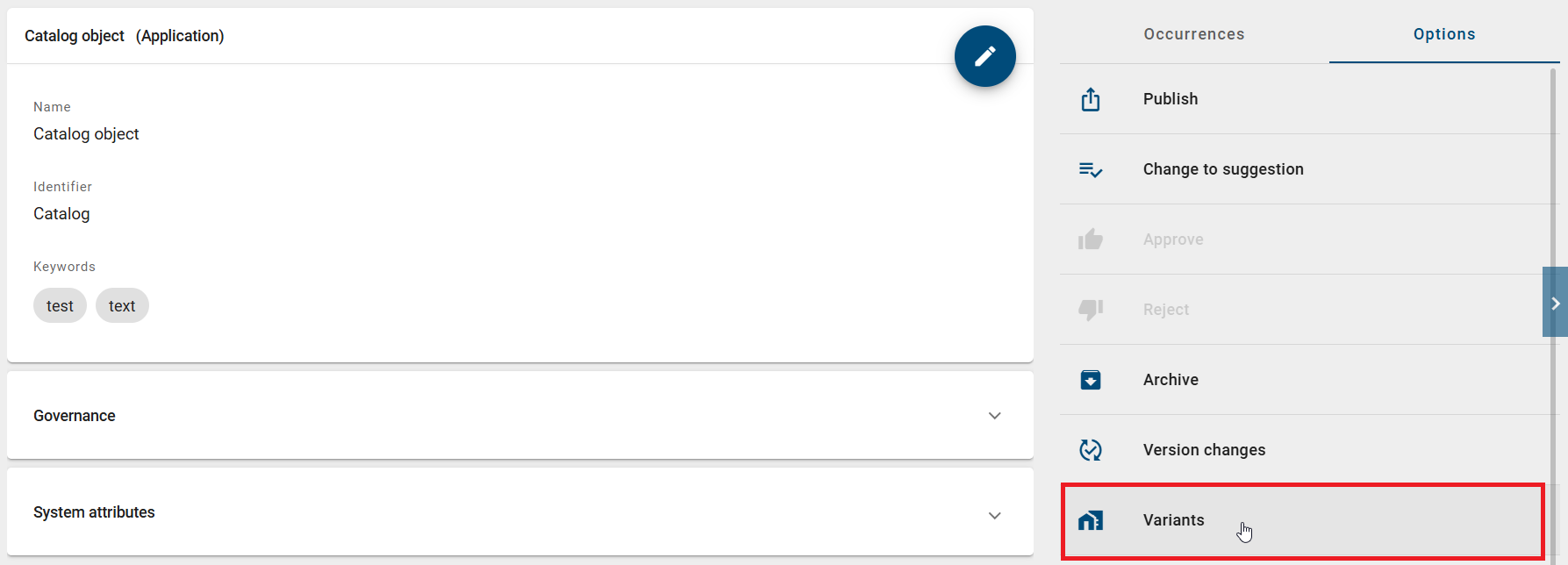
To show the differences between a catalog object and its variant or its original catalog object, first open the Catalog menu item in the left menu bar and select a catalog object from the list that has at least one variant. Then click the Variants option in the Options panel in the right sidebar.
Hint
If the option is not shown, there is no variant for the catalog object.
When you click the Variants option, the current stage, a catalog variant or the original catalog object of the selected catalog object, and the matching version are already selected automatically. The selected catalog variant follows alphabetical order. You can change the selection if needed.
Access to the different versions depends on your user role:
As an Administrator, Editor, or Author, you can select any stage and any version of the selected catalog variant from these stages.
As a Reviewer, you can select the Preview and Publication stages and any version of the selected catalog variant from these stages.
As a Reader, you can select the Publication stage and any version of the selected catalog variant from this stage if you have been granted access permission. Otherwise, you can only access the active version and the latest version of the catalog variant.
Note
If there are no changes in other stages or if only one catalog variant exists, you cannot change the catalog variant or the version for the comparison.
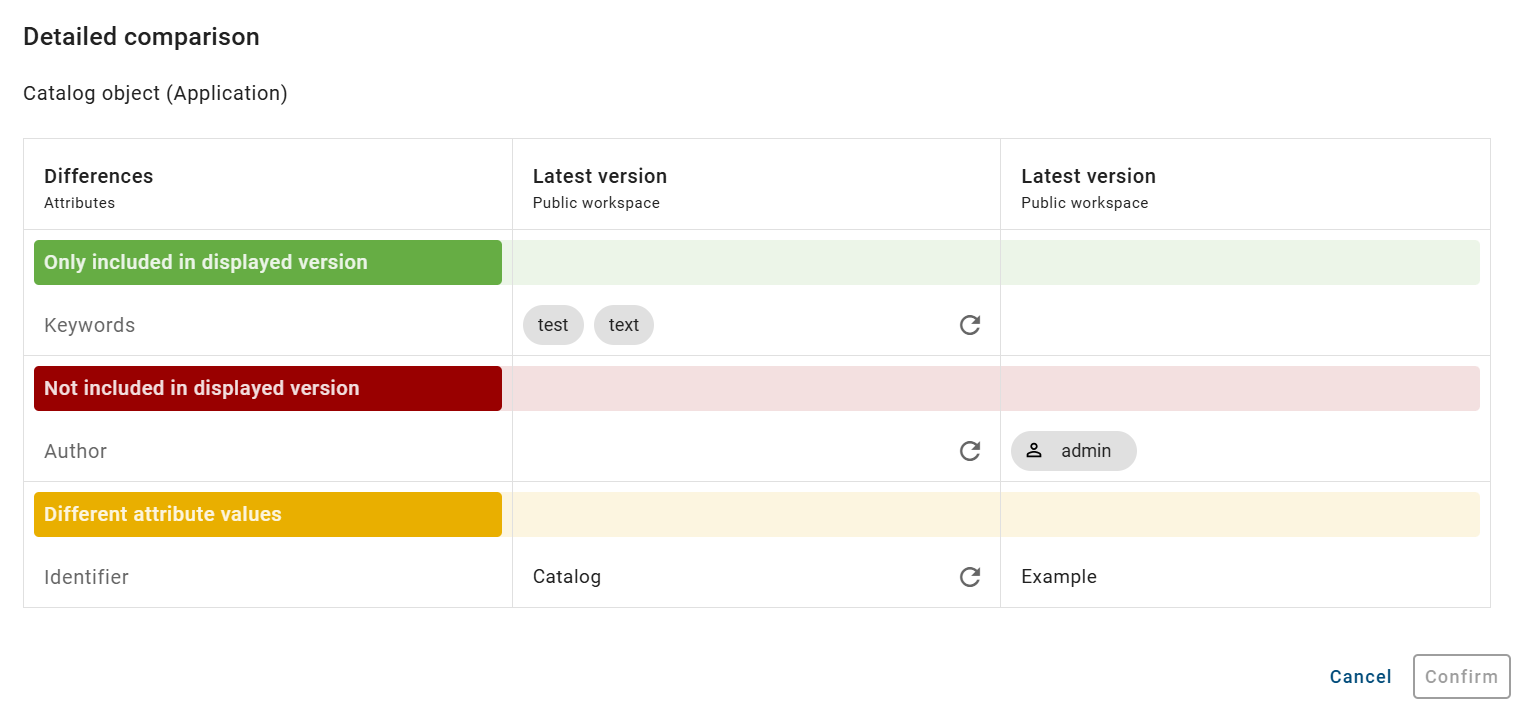
After the stage, catalog variant, and version are selected automatically or adjusted by you, the differences are shown directly. The differences are divided into the following sections:
Only included in displayed version: The attribute exists only in the active catalog object.
Not included in displayed version: The attribute does not exist in the active catalog object, but only in the selected catalog variant.
Different attribute values: The attribute has different values in the active catalog object and in the selected catalog variant.
The list shows the names of the attribute types in your browser language. If there are differences in other content languages, an information banner is shown below the selected version. This banner lists the affected languages as language codes, for example DE, PL, ES, FR, IT. To see the differences in one of these languages, you must change your content language to that language. After that, the attribute types in the list are shown in that language if changes exist there.

If there are no differences between the active catalog object and the selected catalog variant, you will see a message telling you this.
Only the names of the attribute types are shown in the list. For more detailed information about the differences, click the Compare details button. A table then opens and clearly shows the differences of the listed attributes.
In the left column, the differences are highlighted in color. In the middle and right columns, you can compare the differences between the active catalog object (middle column) and the selected catalog variant (right column) in detail. To close the table, click the Cancel button.
Hint
Please note that when comparing the current catalog object with a selected catalog variant, the system attributes are also shown if they have been changed.
How can I apply changes from a catalog variant to the active catalog object?
Users with the Administrator, Editor, or Author user role can apply changes from a catalog variant to the active catalog object.
To apply the changes from a catalog variant to the active catalog object, first open the Catalog menu item in the left menu bar and select a catalog object from the list that has at least one variant. Then click the Variants option in the Options panel in the right sidebar.
Hint
Please note: If the option is not shown, there is no variant for the catalog object.
When you click the Variants option, the current stage, a catalog variant of the selected catalog object, and the matching version are already selected automatically. The selected catalog variant follows alphabetical order. You can change the selection if needed.
The differences are then shown directly. With the Show details button, you can open a table that clearly shows the differences of the listed attributes.
To apply attribute values from the selected catalog variant to the active catalog object, you must have at least the Author user role and work in the public workspace. Then click the Update button next to the attribute value that you want to apply. The active catalog object will then take over the attribute value of the selected catalog variant.
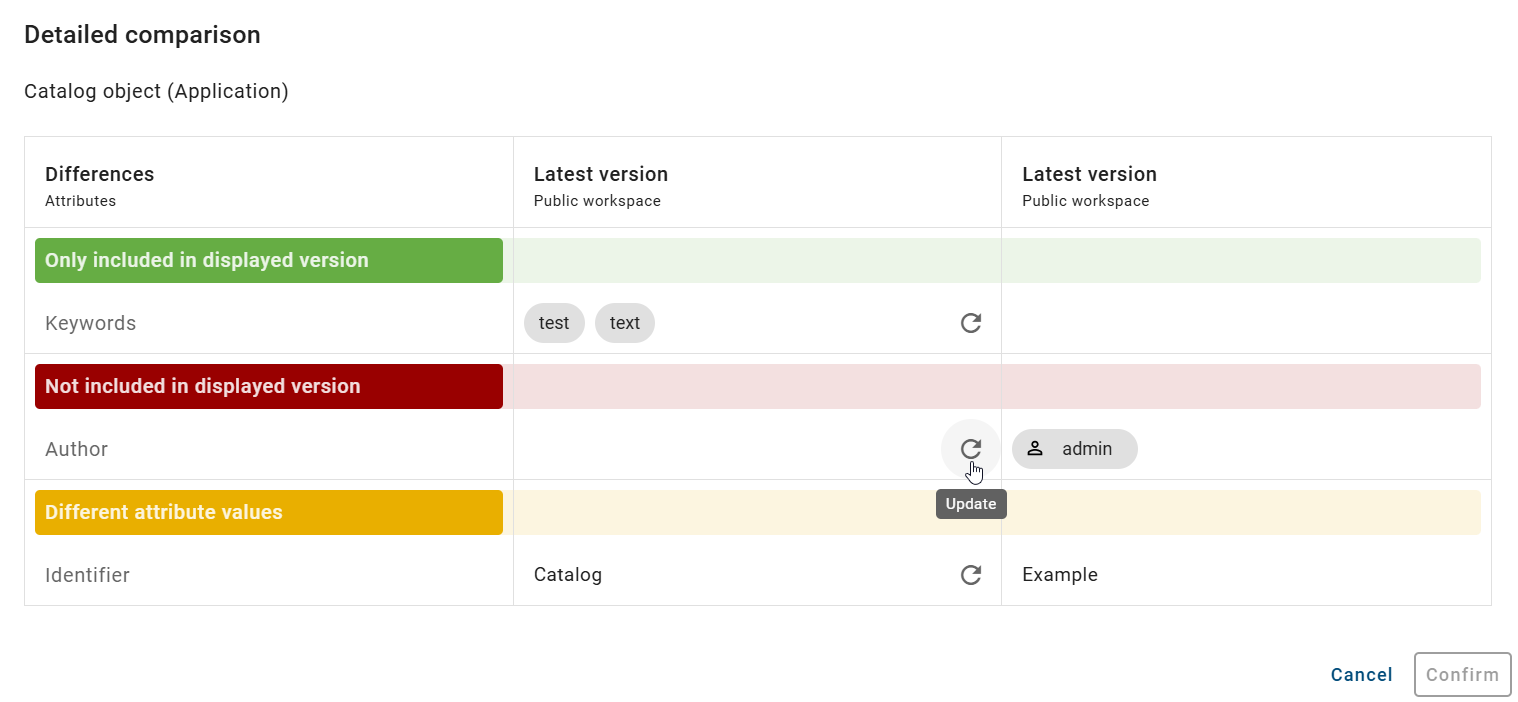
If you want to undo the change, click the button again. It will then be called Undo update. You can also stop the process by clicking the Cancel button. To save your changes, click the Confirm button.
Hint
Please note that changes can only be made if the catalog object has been accepted and if you or your user group are entered as the author of the catalog object.